Add SUOM Item
For contract price validation to take place, the purchased item’s UOM (unit of measure) must match the contracted UOM. CCXpert users can add supplemental unit of measure (SUOM) information so that items with an alternative UOM can still price match. Each contracted UOM has a icon in the right column. A contracted UOM is on a white or gray line. A SUOM is on a yellow line.
To add an SUOM item:
-
Search for and select the contract you want to add an item to. Refer to Search for a Contract for more information.
-
Select Add SUOM Item. CCXpert adds a new line with an editable UOM and QOE (quantity of each) fields.
-
Enter the UOM and QOE values.
Caution: It is very important to enter the correct quantity of each (QOE) because this is how the price is calculated. The SUOM prices update relative to the contracted UOMs price updates. For instance, if an EA of 1 is $1, the system will calculate a CA of 100 as $100. If the contracted EA price changes to $2, the CA price will automatically increase to $200 because the price calculation is based on the contract UOM and the SUOM’s QOE. -
Select Save
 to save the changes.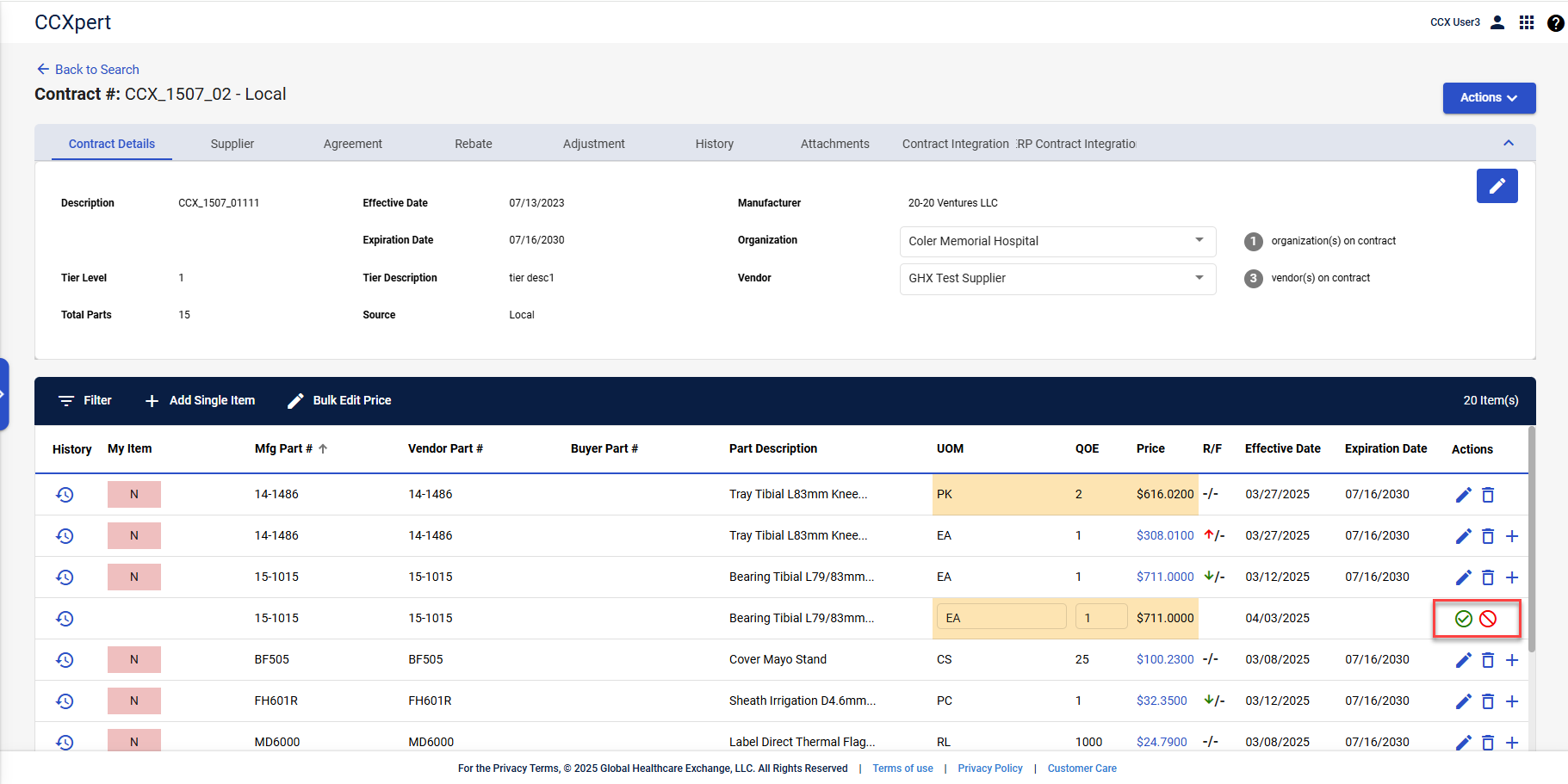
-
The Add SUOM Item window appears. Indicate whether you want to add this item For All Organizations or just For [the selected organization] Only. A confirmation message opens that informs you that the SUOM has been added and that it will take effect the next day.
Note: The new SUOM is viewable only when you select Show Filter and change the date in the Price As Of field to tomorrow or later. The default date is today, which is before the SUOM is available.