Settings Tab
The Settings tab contains CCXpert and item-specific settings that you can configure to customize your CCXpert experience.
Navigation
This tab is located on the Settings screen. To access this screen, navigate to Configuration > Settings from the left-side navigation pane.
Prerequisites
Only users with the Admin user role can access this tab.
Field Descriptions
The following fields appear on the Settings tab.
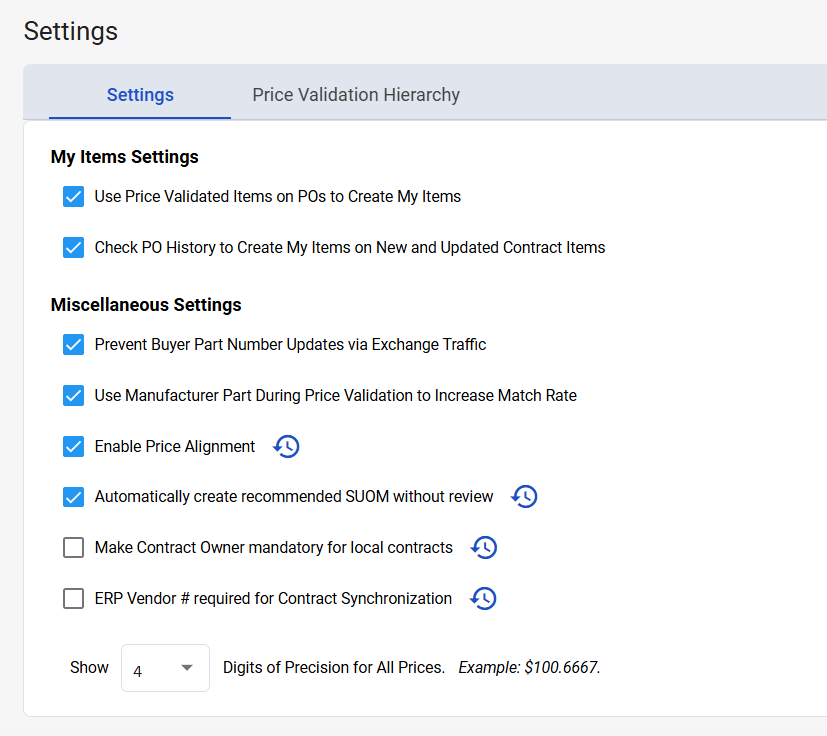
|
Field |
Field Description |
|---|---|
|
My Items Settings |
|
|
Use Price Validated Items on POs to Create My Items |
An item from an order becomes a My Item when the purchase order is processed through the Exchange, and the item price validates it as a contract in CCXpert. It is similar to a “favorite.” CCXpert will check the traffic from this point forward (not historical traffic). You can create My Items manually or automatically.
|
|
Check PO History to Create My Items on New and Updated Contract Items |
Similar to the Use Price Validated Items on POs to Create My Items option, this option checks traffic through the Exchange and looks for potential items that could qualify as My Items, but it polls historical purchase history every week. For example, if a new item came onto a contract today and you ordered that item six months ago, CCXpert would switch that item to a My Item. (If you only selected Use Price Validated Items on POs to Create My Items in this case, CCXpert would not switch the item to My Item until you ordered it again in the future). You can select both options to create My Items in real-time orders and check new contracts for retrospectively ordered items. |
|
Miscellaneous Settings |
|
|
Prevent Buyer Part Number Updates via Exchange Traffic |
By default, CCXpert populates the buyer part numbers according to Exchange traffic. When an item matches during price validation, CCXpert enters the provider’s buyer part number. Select this checkbox to prevent CCXpert from automatically populating this number. |
|
Use Manufacturer Part During Price Validation to Increase Match Rate |
The vendor part number is the first data source checked to match against a contract, along with the vendor and unit of measure information. Select this checkbox to search for manufacturer part number matches when no vendor part number match is found. Note: Be aware that not all providers or vendors pass the manufacturer part number in the EDI. Also, distributors often use the same manufacturer part number from multiple manufacturers. While this setting does increase the possibility of an incorrect manufacturer part number match, most providers find that the risk of error offsets the increase in productive matches.
|
|
Enable Price Alignment |
Please speak to your GHX account team about enabling this tool, which allows users to compare contract pricing to certain vendors’ price file data.
Select History to view all historical information about this setting. The Price Align Enable History window opens.
|
|
Automatically create recommended SUOM without review |
Select this checkbox to automatically add Supplemental Units of Measure from the SUOM Recommendation Report.
Select History to view all historical information about this setting. The Last User Updated SUOM Recommendation Setting window opens.
|
|
Make Contract Owner mandatory for local contracts |
Select this checkbox to require Contract Owner assignment for local contracts. Contract Owner will be a mandatory field for new local uploads and whenever an existing local contract’s header information is edited.
Select History to view all historical information about this setting. The Mandatory Contract Owner History window opens.
|
|
ERP Vendor # required for Contract Synchronization |
Select to require users to enter an ERP Vendor # when synchronizing contracts on the Contract Synchronization screen and Bulk Assign ERP # tab.
Select History to view all historical information about this setting. The ERP Vendor # Required Settings Change History window opens.
|
|
Show [#] Digits of Precision for All Prices |
Select the number of Digits of Precision for All Prices. This will only affect the display of prices in CCXpert. My Exchange Orders has its own Application Settings for Price Precision. The available options are:
|