Attachments
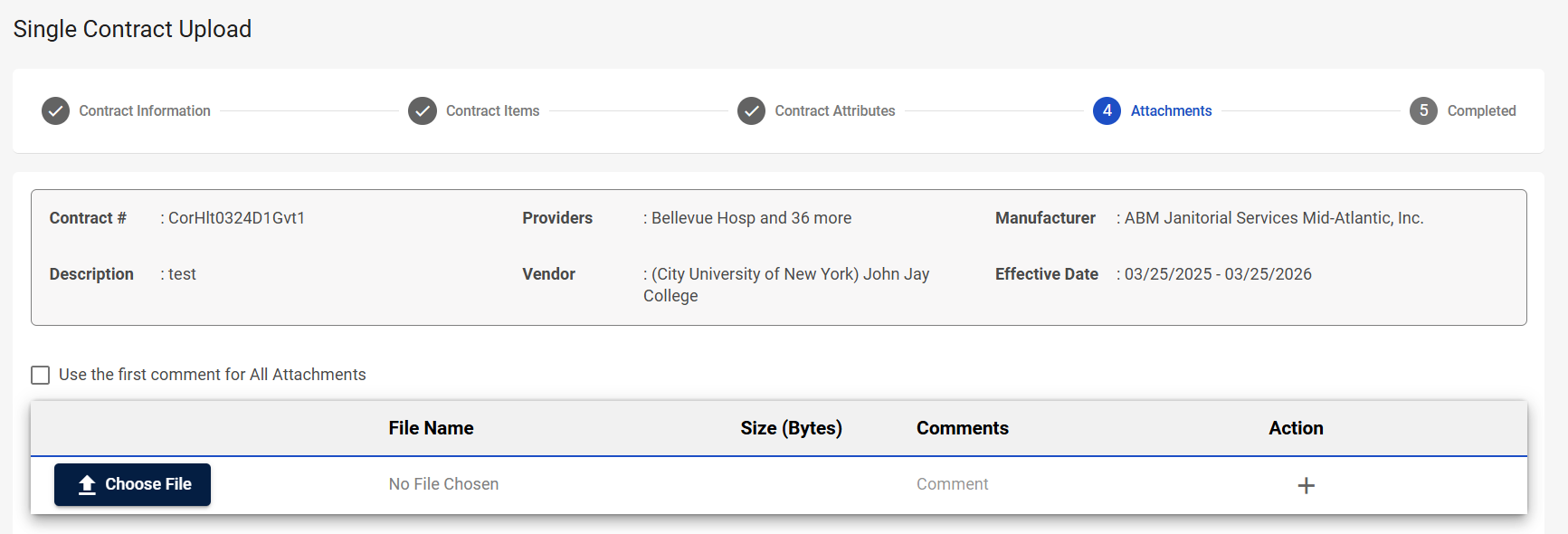
The Attachments step is the fourth step in the Single Contract Upload process. In this step, you will upload any attachments related to the contract that you find necessary.
Navigation
This step appears when you select Next on the Contract Attributes step.
Field Descriptions
The following fields appear during the Attachments step.
|
Field |
Field Description |
|---|---|
|
Contract Information |
|
|
Contract # |
Displays the contract number. |
|
Providers |
Displays the providers associated with the contract. |
|
Manufacturer |
Displays the manufacturer associated with the contract. |
|
Description |
Displays the contract description. |
|
Vendor |
Displays the vendor associated with the contract. |
|
Effective Date |
Displays the contract start and end date. |
|
Attachments |
|
|
Use the first comment for All Attachments |
Select to associate the first comment in the Comments column with all the listed attachments. |
|
Choose File |
Select to search for and select an attachment. |
|
File Name |
Displays the file name of the attachment you uploaded. |
|
Size (Bytes) |
Displays file size. |
|
Comments |
Enter comments about the attachment. There is a 500 character limit. |
|
Action |
Displays actions you can take. The available options are:
|
|
Buttons |
|
| Previous | Select to return to the previous screen. |
|
Complete Upload |
Select to upload the contract details, attachments, etc. that you have entered. You are taken to the Completed screen. |