Description Management: Description Scheme
Item Description Scheme
Customer Admin users can add a scheme to manage item descriptions. Using a scheme can improve data quality and consistency in your item master. A new item master must be processed by Data Connect before recommendations can be seen in the application.
Add New Description Scheme
-
Select Configuration, Description Management. The Description Management page opens.
-
Select the Schemes tab.
-
Select Add New.
The New Scheme wizard opens.
-
Select a description source from the list.
Options are:
-
GHX Description
-
Manufacturer Description: These descriptions come from the GUDID or the item catalog.
-
-
Select an ERP item description option from the list.
-
Add your ERP system's location where you would like GHX to populate the description.
- Select Next. The New Scheme - Define page opens.
 Note: The Assigned Letter Case drop down, previously located in the Schemes tab, has been relocated to the scheme creation wizard under the Define section.
 -
Specify the following fields:
- Maximum Length: Define the maximum number of characters that will be allowed.
Tip: The minimum number of characters is 10 and the maximum number is 500.
Note: The ERP Item Description shown here is for Workday. The selections for other ERPs will differ.
-
Abbreviate the descriptors: Click yes to use abbreviations.
-
Select the abbreviation list: Select one of the abbreviation lists you configured on the Manage Item Abbreviations page.
-
Allow first word abbreviation: Select yes to abbreviate the first word in the description.
-
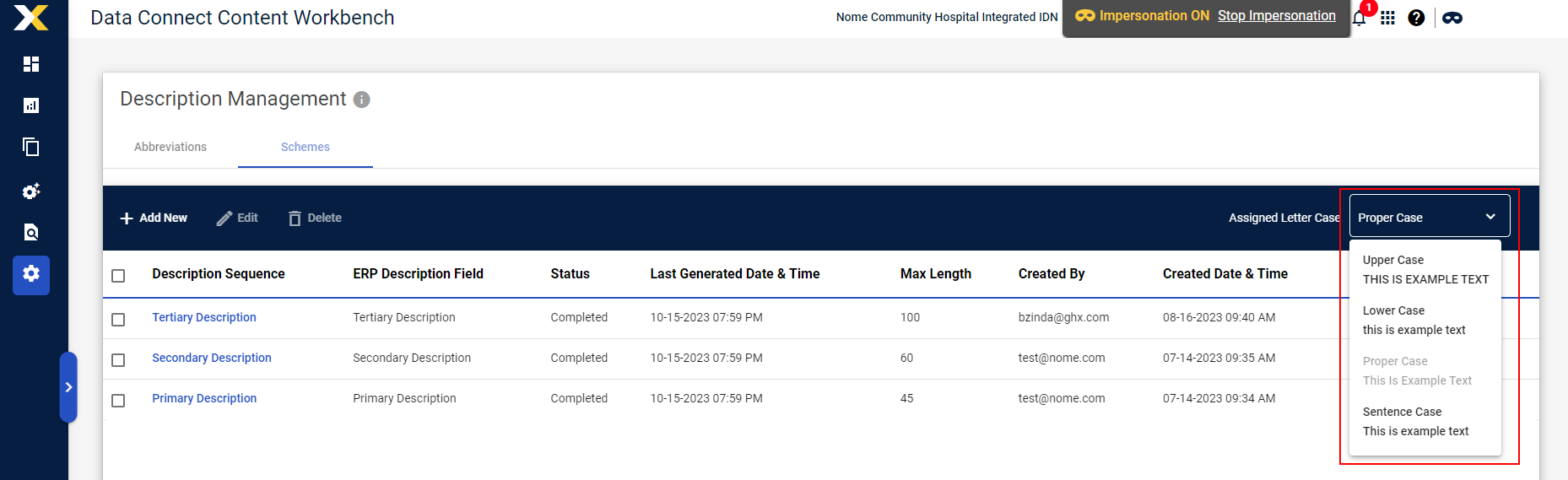
Assigned Letter Case: Select the option that matches your organization's ERP settings.
Options are:
-
Upper Case: All upper case letters (for example, THIS IS EXAMPLE TEXT).
-
Lower Case: All lower case letters (for example, this is example text).
-
Proper Case: Upper case for initial word and proper names (for example, This is Example Text).
-
Sentence Case: Upper case for the initial word in the description (for example, This is example text).
-
- Maximum Length: Define the maximum number of characters that will be allowed.
-
Select Next.
-
Review the information for accuracy.

-
Select Finish.
Tip: GHX runs the item description scheme once per day at midnight. Descriptions will be available the next day.