View Purchase Orders
The PO view displays the buyer's PO information and the supplier's responses (examples are POA, ASN, and invoice information).
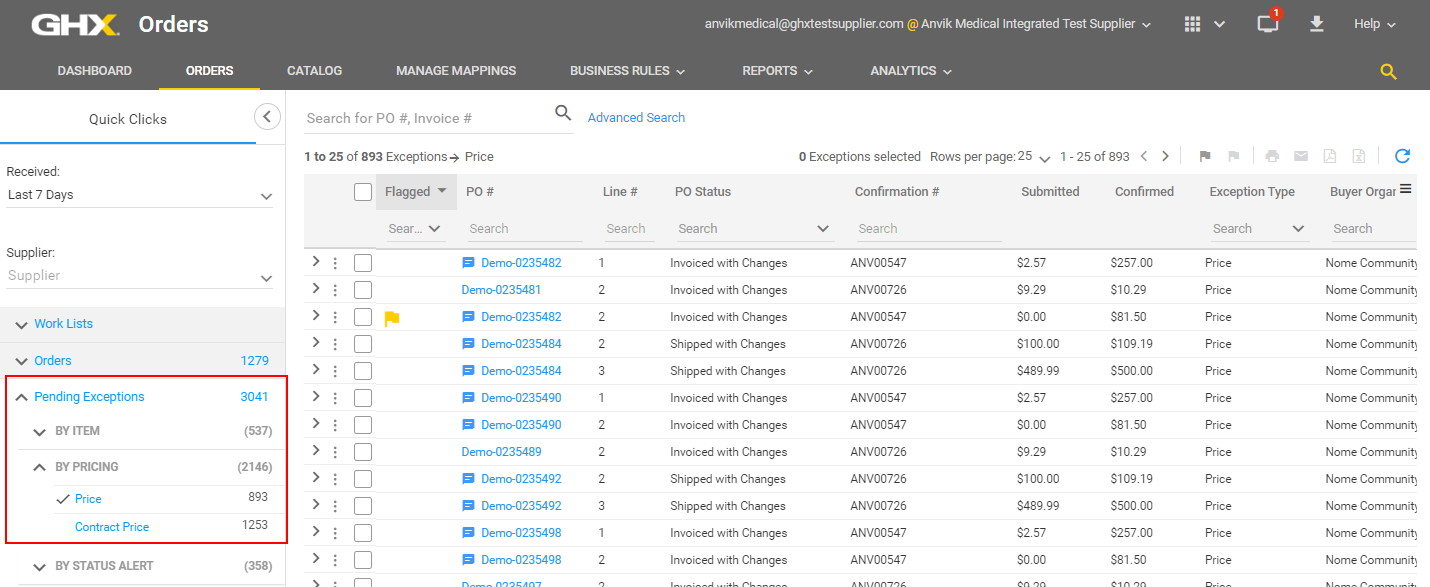
- Use Quick Clicks, Work Lists, or Advanced Search to search for specific data. The following example shows a Quick Click filter for exceptions.
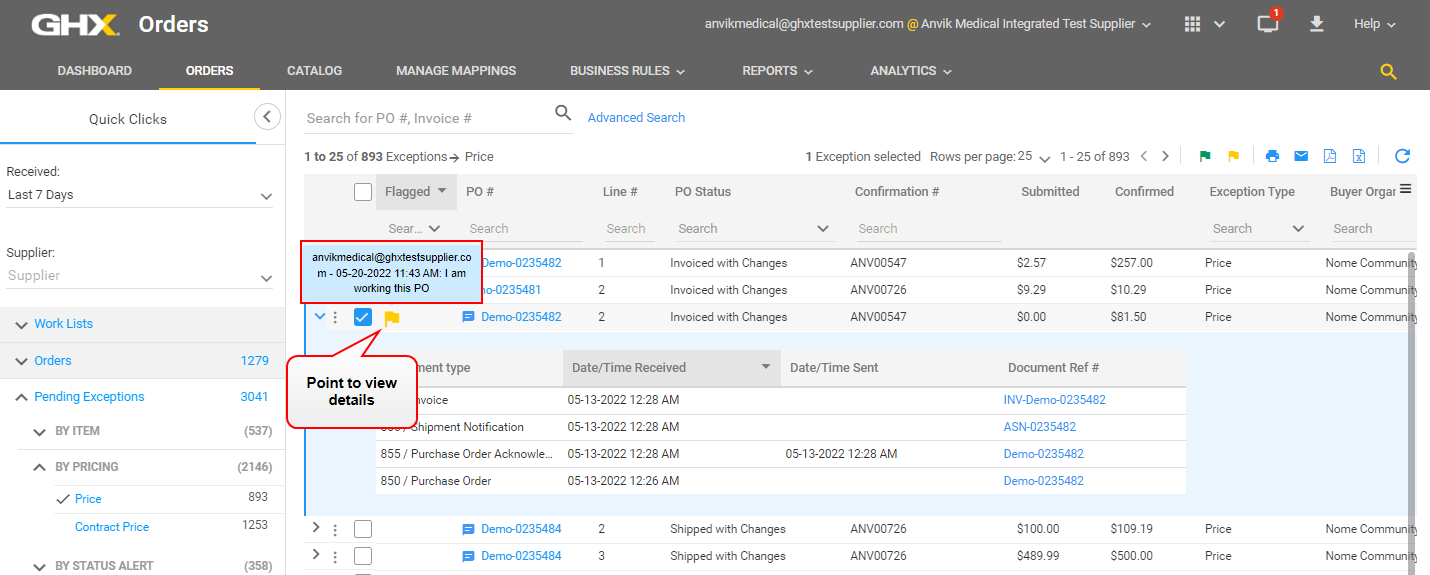
- Point to a yellow or green flag to view details about that flag.
- Click a link in the PO # column. The PO view opens.
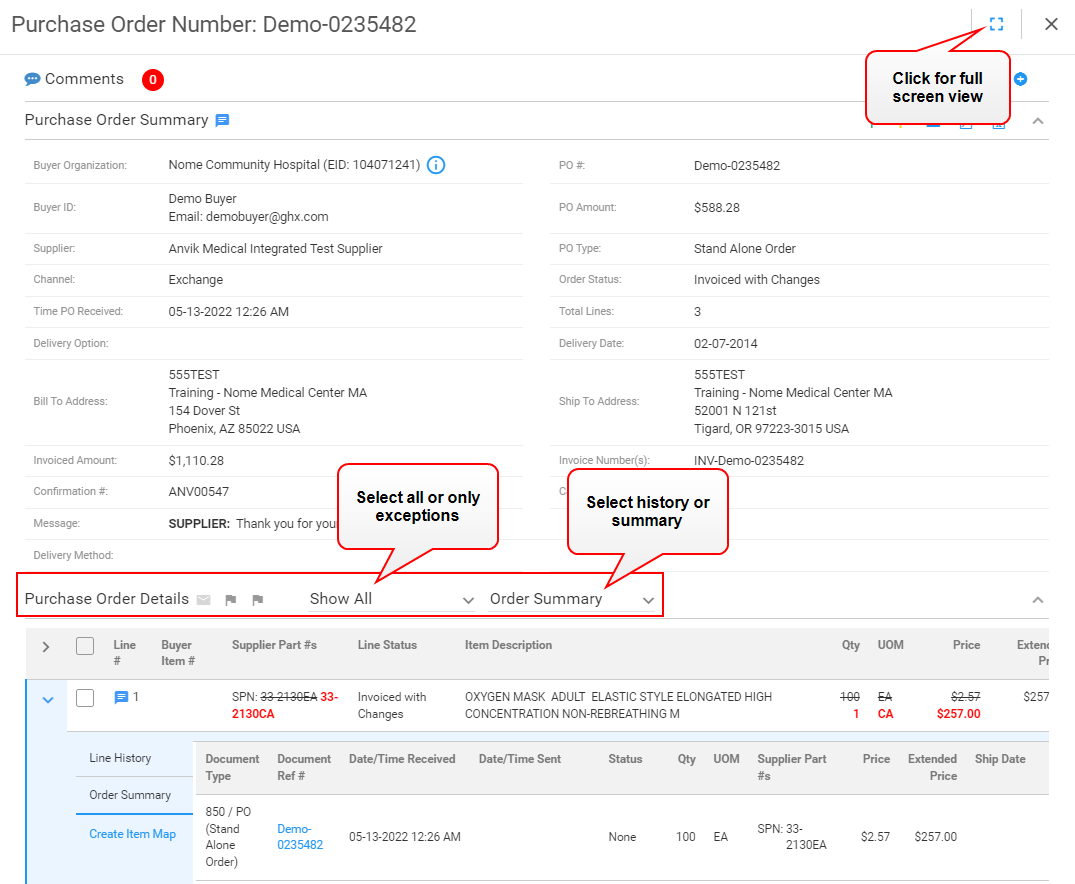
- Click the drop down lists in the Purchase Order Details header to select from the following options:
- Show All or Show Exceptions Only
- Line History or Order Summary
Tip: These views persist across sessions, meaning that they will still be selected the next time you log in. You can change your view selection at any time.
- Scroll down to view the Purchase Order Details table.
 Columns are:
- Line #
- Buyer Item #
- QOE (Quantity of each)
- Supplier Part #s
- Line Status (for example, Invoices with Changes)
- Item Description
- Qty (Quantity)
- UOM (Unit of measure)
- Price
- Extended Price
-
Analyze the color of the line-level text in the Purchase Order Details to see details about the lines.
Options are:
- Black text – Information received in the PO
- Red text with a line through it – Inbound data as mark-up text; this is the original PO data that the GHX Exchange received
- Green text – Outbound data; this is the data that was delivered to the ERP system; Intelligent Business Rules updated or corrected the data either by item map automation or through manual changes
- Gray text – For split POs (split between electronic and email delivery), indicates the order line has not been delivered electronically; this is for visibility only and no actions or edits can be made

-
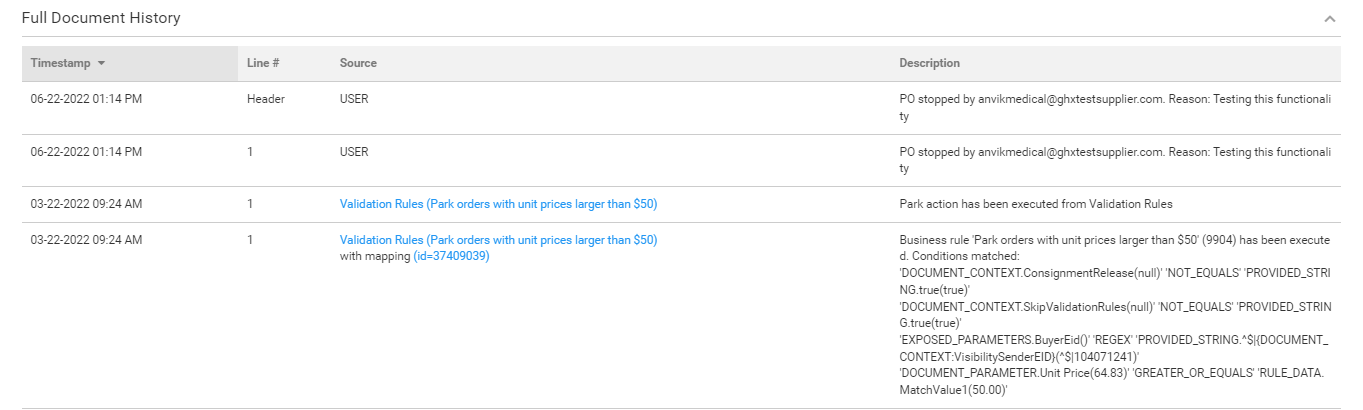
Scroll down to the Full Document History to view an order's activity log.
Note: For validation rules, detailed descriptions of those actions display in the Description column.
 Click the icon to watch a video about this topic. (Review Transaction Details)
Click the icon to watch a video about this topic. (Viewing Raw Data)