Adjust Columns
Adjust the column configuration on the invoice tabs so that you see invoice information that's relevant to your daily tasks. The following instructions show you how to customize the view on the My Invoices tab, but you can also customize your view on any of the invoice tabs.
- Click the My Invoices tab.
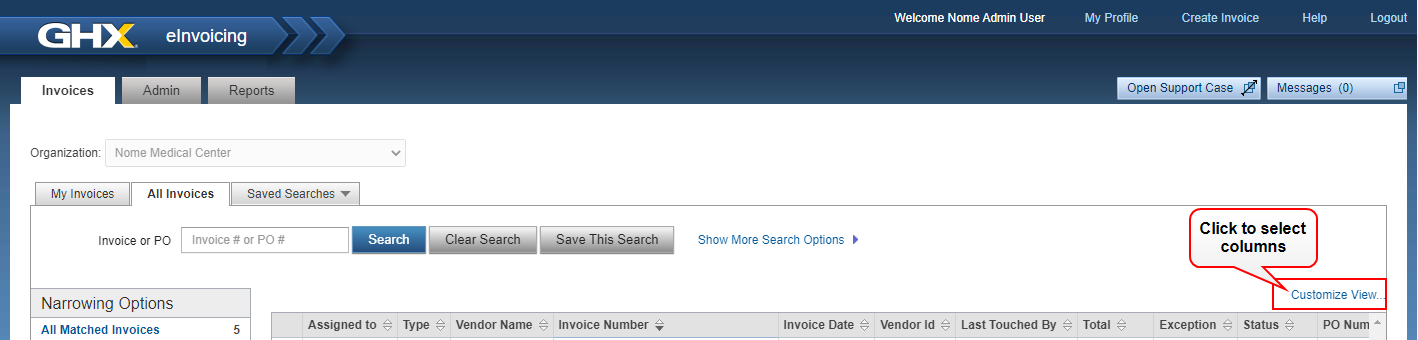
- Click the Customize View link. The Customize View dialog box opens.
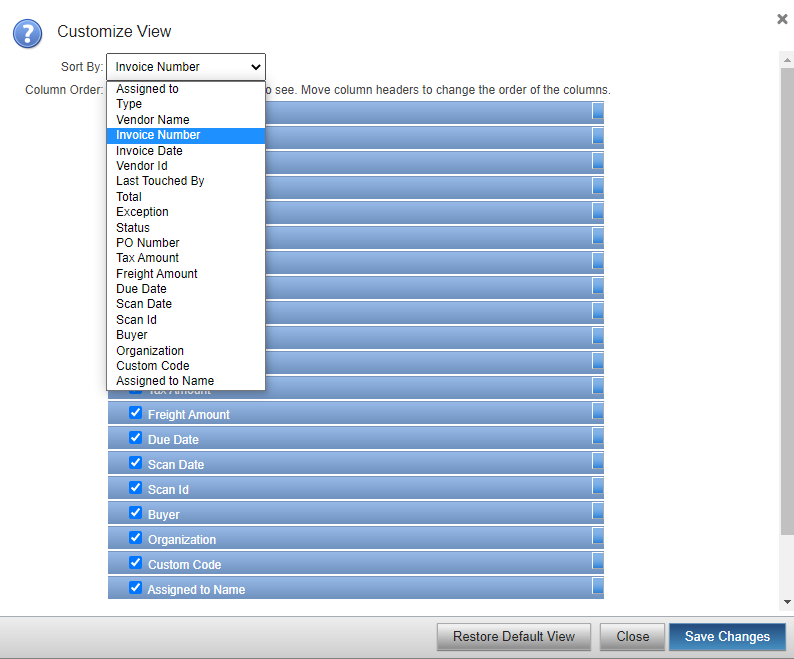
- Select a column name in the Sort By list. eInvoicing for Providers sorts data on invoice tabs by that column name (for example, Invoice Date).
- Select the checkbox to the left of the column names you want to include on invoice tabs.
- Scroll down and select the checkboxes next to the tab names that will include these columns. Options are My Invoices, All Invoices, and Saved Searches.
- Click Save Changes.
How do I remove a column?
- Clear the checkbox next to the column name.
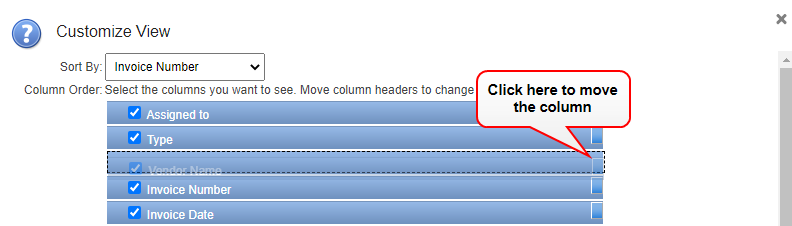
How do I adjust the column order?
- Click an Invoice tab.
- Click the Customize View link. The Customize View dialog box opens.
- Click the right side of the column name and drag it to the new position in the list.