Import Users in Bulk
You can create users by importing a list of employees. The file must be in .csv format and include required information.
Note: New users must update their password the first time they log in to eInvoicing for Providers.
- Click the Admin tab.
- Click the Import Users link in the View Users area. The User File Upload dialog box opens.
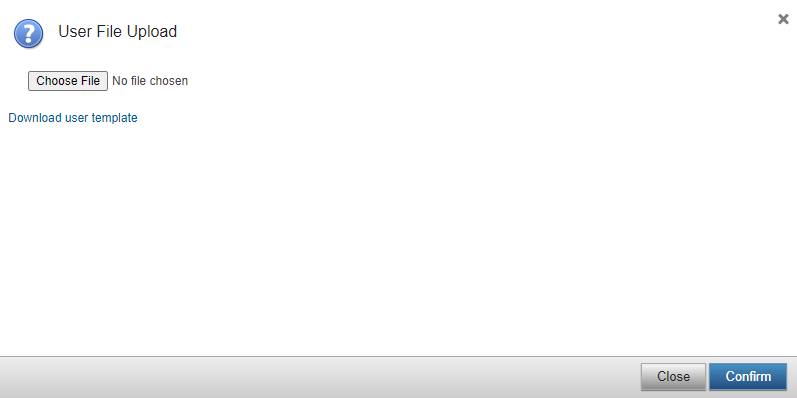
- Click the Download user template link. A browser dialog box opens.
- Save the Microsoft Excel file to your desktop with a unique name.
- Use this sample template to create the list of users. Alternatively, you can manipulate a current spreadsheet to meet the file requirements. Use the exact user role name when assigning a role to each user. See User Roles for a list of user roles.
Note: Use the PO Approval Amount column to set the user's approval amount for PO invoices and non-PO invoices.
- Click Save to save the spreadsheet.
- Return to the User File Upload dialog box in eInvoicing for Providers.
- Click Browse.
- Locate the file on your computer and double-click the name to select it.
- Click Confirm. eInvoicing for Providers opens a message that verifies the number of users successfully uploaded from the file.
Note: You will also be notified of any users that failed to upload. If a user fails, check the file, verify user information, and attempt to upload the file again.
- Click Cancel to close the Upload User File dialog box.