Use Narrowing Options
Narrowing Options are on the left side of the Invoices tab. This area includes quick links to invoice categories pertinent to your user role. The number of invoices in each category is listed to the right of the status.
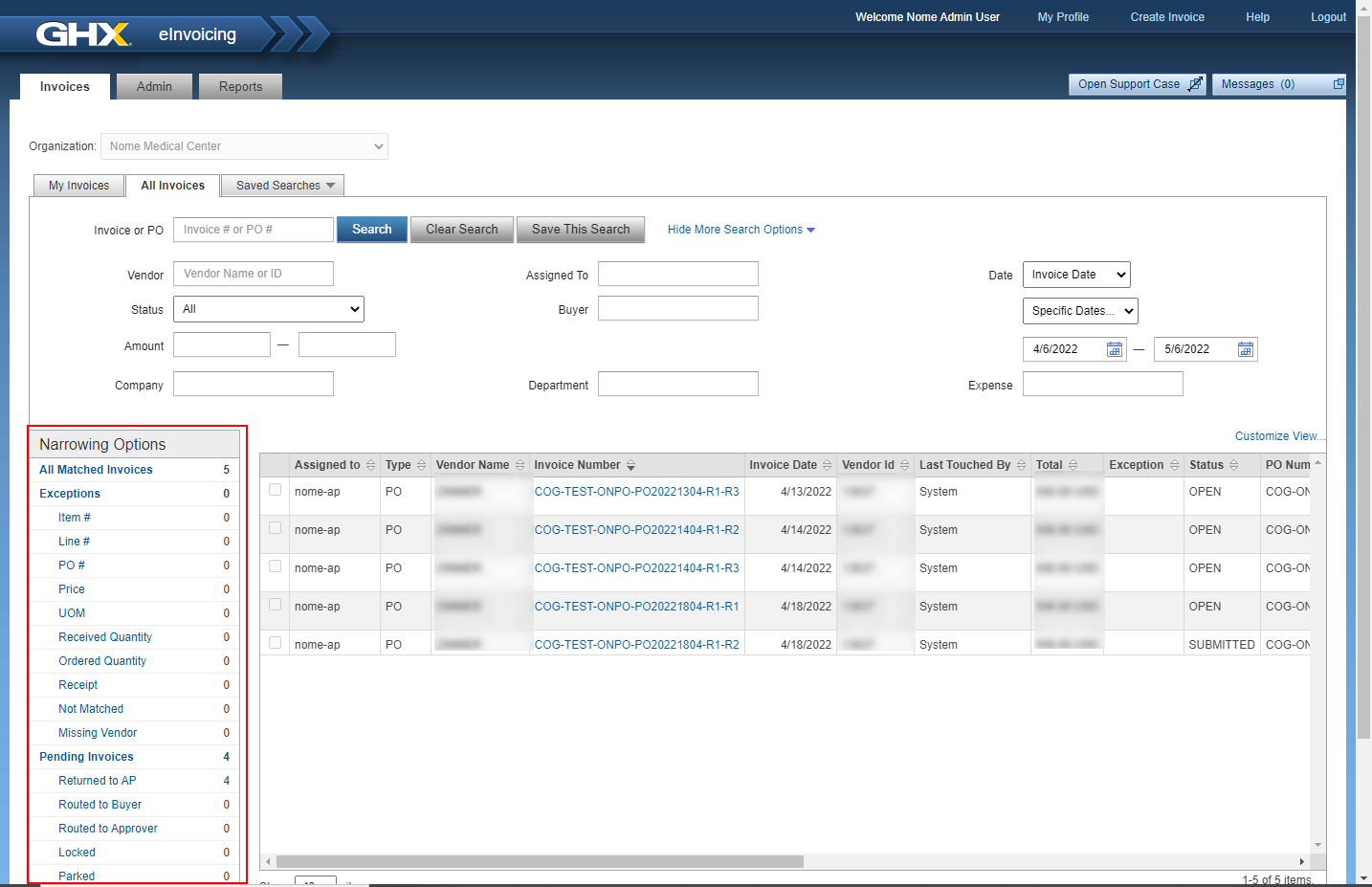
What narrowing options are available?
- All Matched Invoices: All invoices that the system attempted to match to a PO and that are pending action
- Exceptions: Invoices that went through the matching process and encountered an exception based on your organization's exception criteria; the amount can be more than the total invoices if multiple exceptions exist on a single invoice
- Pending Invoices: Total count of invoices with various statuses that are pending action
- Custom Code: Total count of invoices with custom codes
- Non-PO: Total count of invoices without a matching PO
The invoice count can be greater than the total invoices when they're in the following status:
- Returned to AP: The invoice was routed to the accounts payable user for editing and approval; includes invoices assigned to these user roles: Accounts Payable, Account Payable Restricted, and Accounts Payable Super
- Routed to Buyer: The invoice was routed to the buyer user for editing
- Routed to Approver: The invoice was routed to the approver user for approval
- Locked : Another user is currently working the invoice; only one user at a time can work an invoice
Tip: Point to a locked invoice in the list of results to see the name of the user who is working the invoice.
- Parked: The user has temporarily paused the workflow to investigate an exception
- Custom Code: If your organization creates and assigns custom codes to invoices, those invoices are in this group
- Non-PO: Invoices for which a matching PO could not be found