Configure the Dashboards
Client administrators can use the following steps to configure some of the settings that show on the GHX Dashboard's Overview pages. Other users can view but not change these settings.
- Click Dashboard. The Dashboard for the Exchange page opens.
- Click the Tools button and select Configure. The Configure Dashboard page opens.

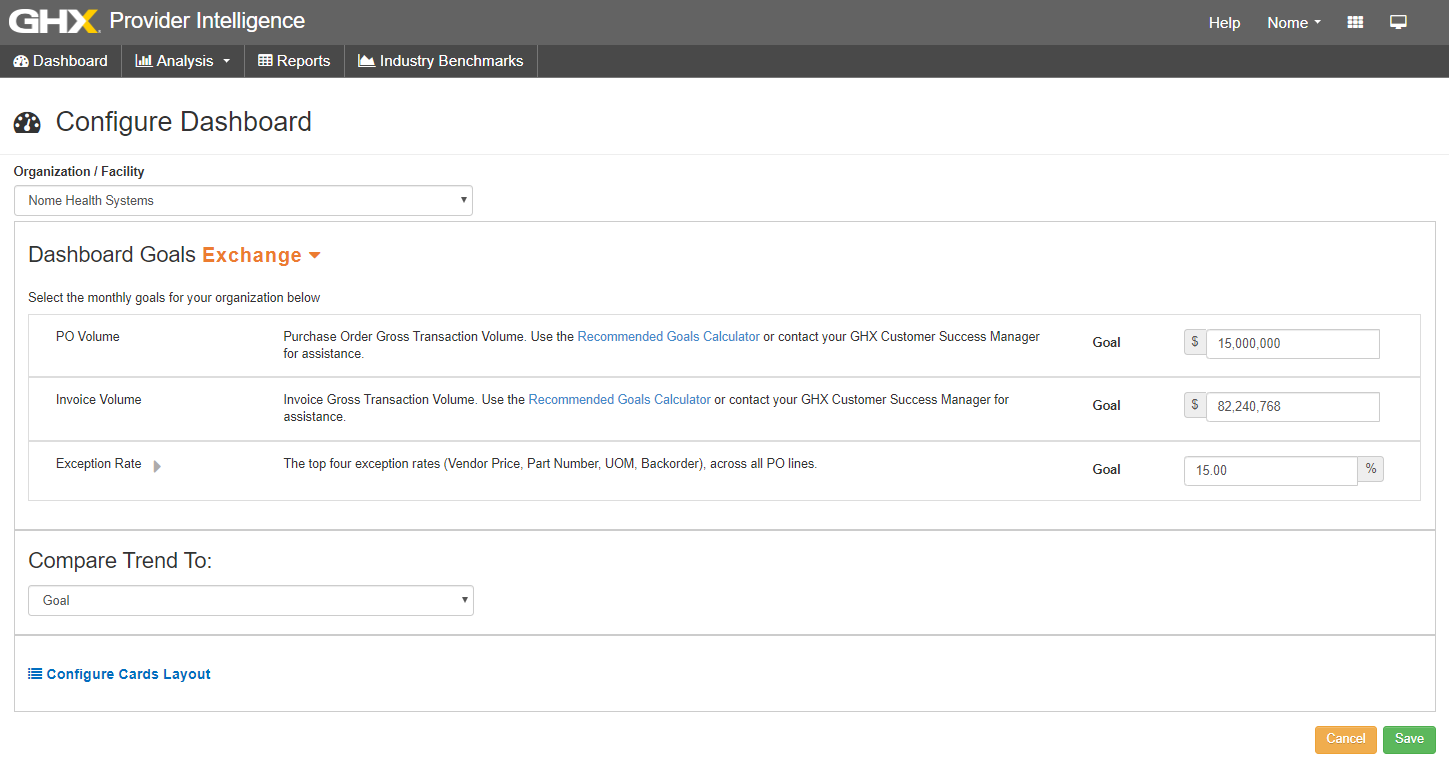
- Modify configuration settings for the Dashboard Goals – Exchange page, as needed.
 Click to see the steps:
- Type dollar and percentage amounts in the PO Volume, Invoice Volume, and Exception Rate fields.
- Select a trend comparison value in the Compare Trend To area. Options are:
- Last Year's Period
- Previous Period
- Goal
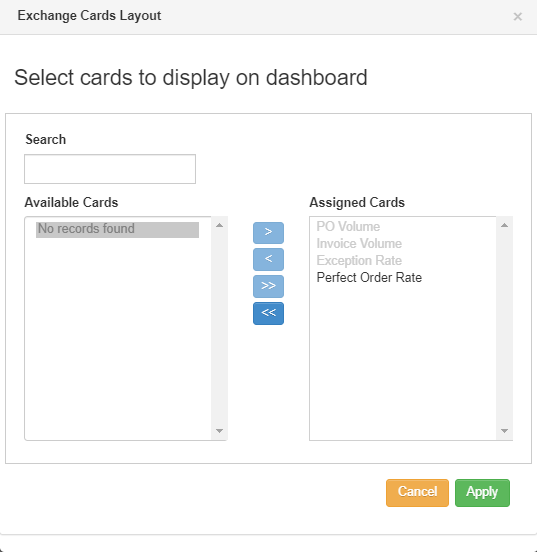
- Click the Configure Cards Layout link. The Exchange Cards Layout dialog box opens.

- Select card names and use the arrows to show (move to Assigned Cards) or hide (move to Available Cards) those cards on the Dashboard.
- Click Apply.
Tip: Click the Recommended Goals Calculator link for help with calculating these goals.
- Click the arrow to the right of the Dashboard Goals Exchange name and select Contracting.
- Modify configuration settings for the Dashboard Goals Contracting page, as needed.
Click to see the steps:
- Type a percentage in the Contract Utilization field.
- Select an option in the Compare Trend To list. Options are:
- Last Year's Period
- Previous Period
- Goal
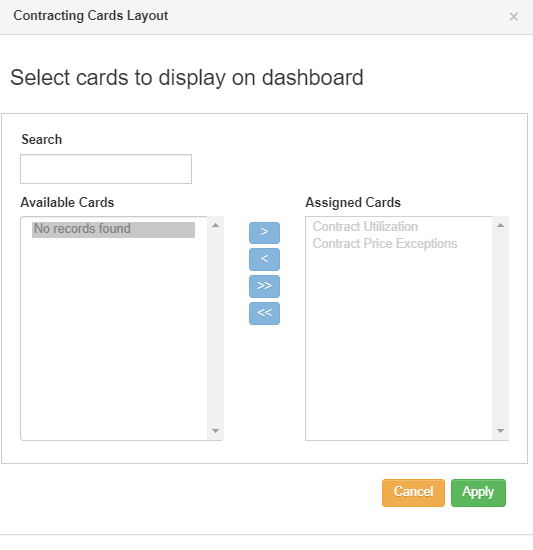
- Click the Configure Cards Layout link. The Contracting Cards Layout dialog box opens.

- Select card names and use the arrows to show (move to Assigned Cards) or hide (move to Available Cards) those cards on the dashboard.
- Click Apply
- Click the arrow to the right of the Dashboard Goals Exchange name and select Item Management.
- Modify configuration settings for the Dashboard Goals Item Management page, as needed.
Click to see the steps:
- Type the goals amounts in the monthly goals section.
- Select an option in the Compare Trend To list. Options are:
- Last Year's Period
- Previous Period
- Goal
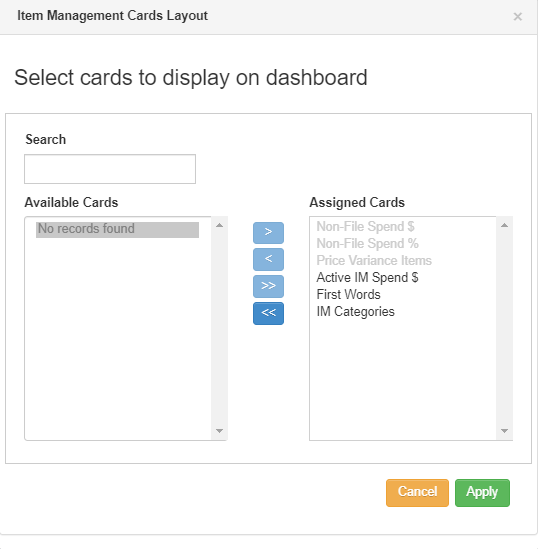
- Click the Configure Cards Layout link. The Item Management Cards Layout dialog box opens.

- Select card names and use the arrows to show (move to Assigned Cards) or hide (move to Available Cards) those cards on the dashboard.
- Click Apply
- Click Save.