Disable and Delete Trading Partner Accounts
When you see an account that is no longer needed, you can disable or delete the account. Instead of deleting, you should disable an account when you think you may need it again in the future. For disabled accounts, Registration Center retains the information for historical purposes. You should delete an account only when you are sure you will not need that account again.
You can specify an effective date for the disable or delete action. Your trading partner will have one week to approve the request. If your trading partner does not approve your request, the action will complete automatically at the end of the week.
Caution: When you delete an account and confirm that deletion, that information is gone. There is no undo operation. Later, if you determine that you still need that account, you will need to recreate the account.
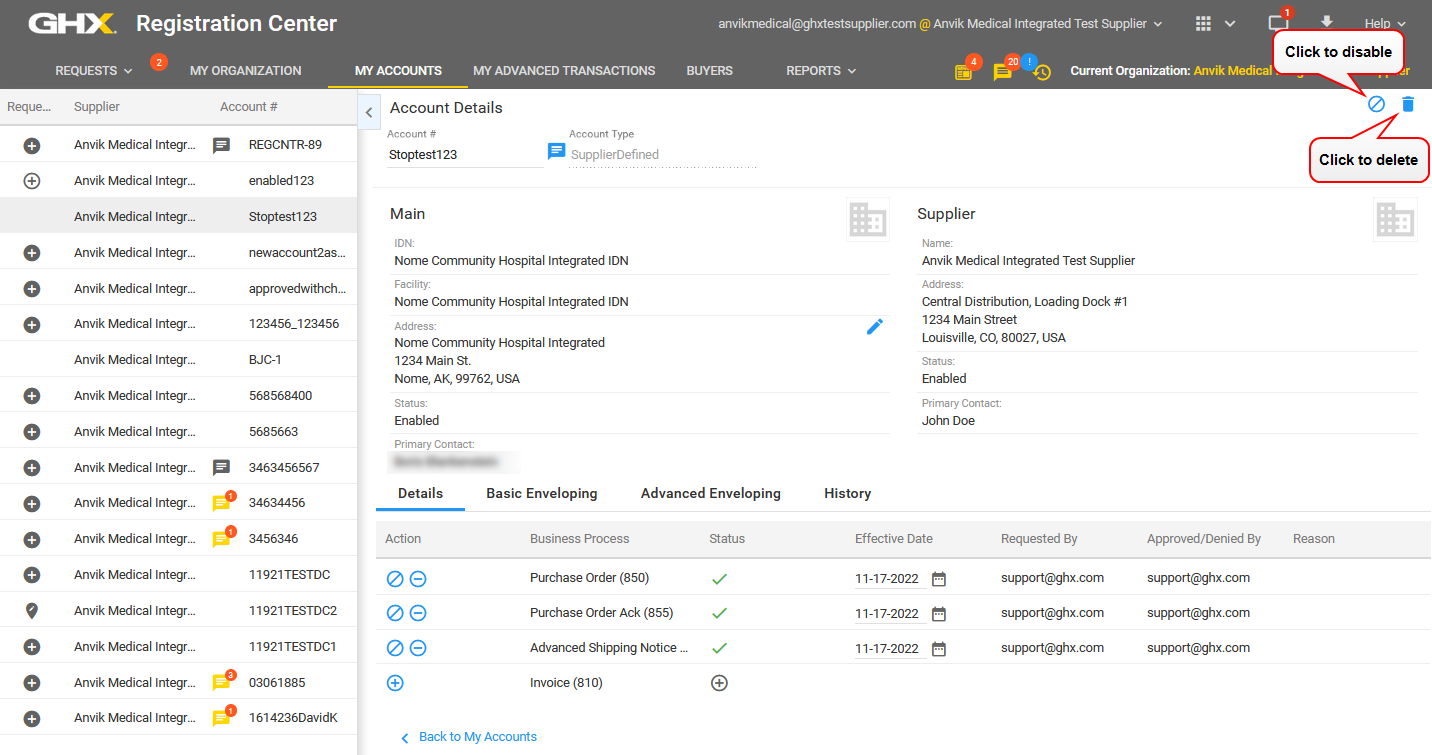
 To disable or delete accounts from the Account Details page:
- Click a link in the Account # column on the My Accounts or Requests pages. The Account Details open.

- Click the Disable
 or Delete
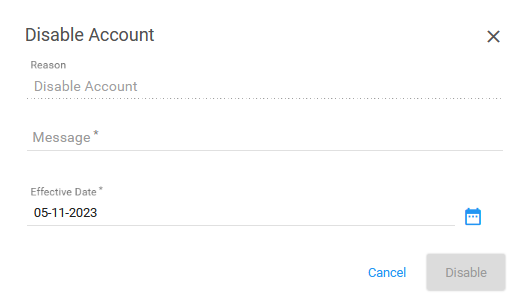
  icon at the top right of the Account Details pane. The Disable Accounts or Delete Accounts dialog box opens.

- Type a reason in the Message field. Your trading partner will see this message.
- Modify the Effective Date (optional).
- Click Disable or Delete. A confirmation message opens and a request is sent to the trading partner requesting approval.
 To disable or delete accounts from the My Accounts page:
- Click My Accounts. The My Accounts page opens.
- Search for one or more accounts.
- Select the checkbox to the left of one or more accounts.
- Click Edit Accounts above the table on the right.
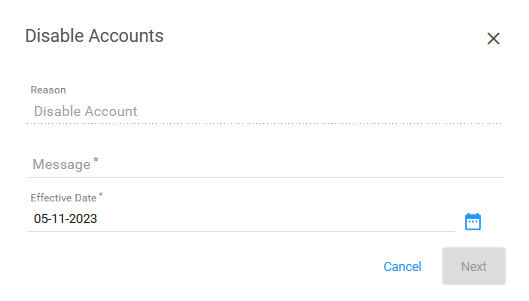
- Select Disable Accounts or Delete Accounts. The Disable Accounts or Delete Accounts dialog box opens.

- Type a reason in the Message field. Your trading partner will see this message.
- Modify the Effective Date (optional).
- Click Next. A Confirmation message opens and a request is sent to the trading partner requesting approval.
- Review the message and click OK to confirm the action.
Tip: Click the Pending Buyer link on the Requests page to view the status of the request.

 Click the icon to watch a video about this topic.