View Perfect Order Rate Exceptions
-
Click the Perfect Order Rate
 icon. The Perfect Order Rate page opens.
-
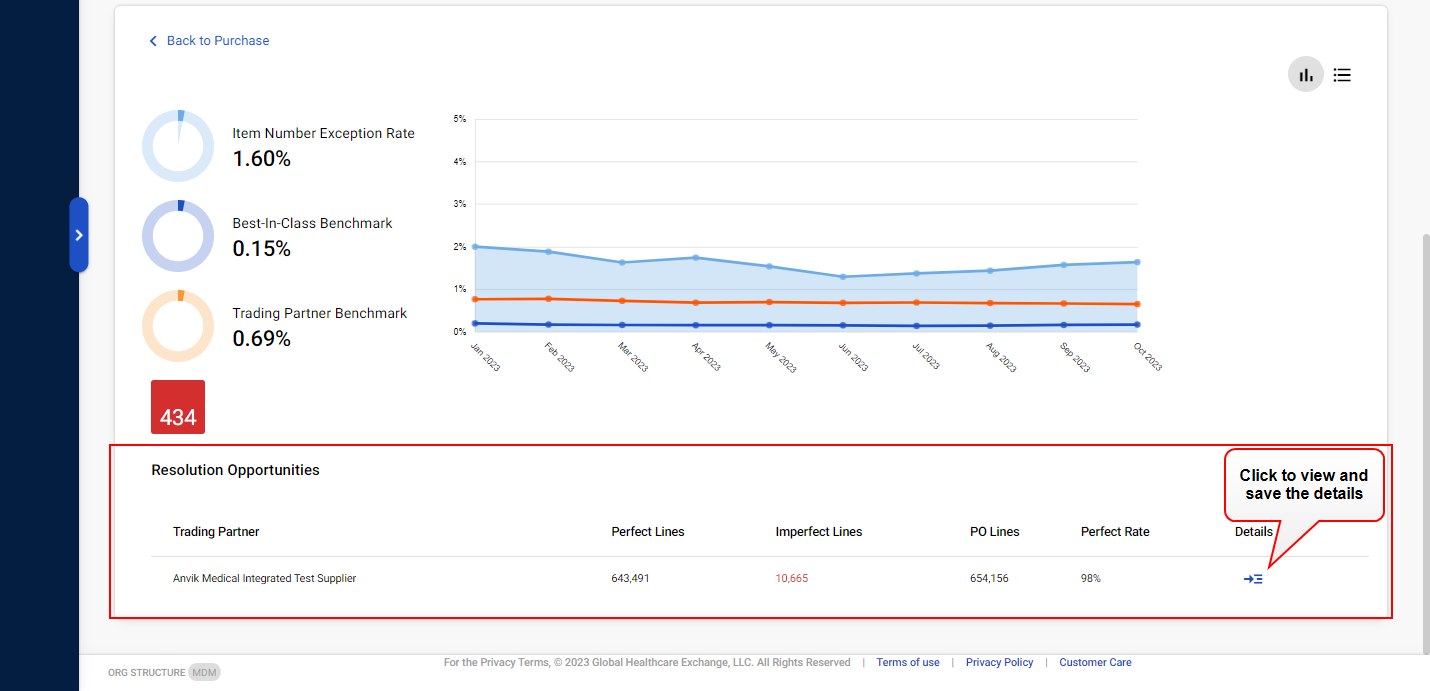
Click a KPI category card (for example, Purchase) and click a KPI sub-category filter (for example, Item Number Exception). A Resolution Opportunities table opens.

-
Click the Details
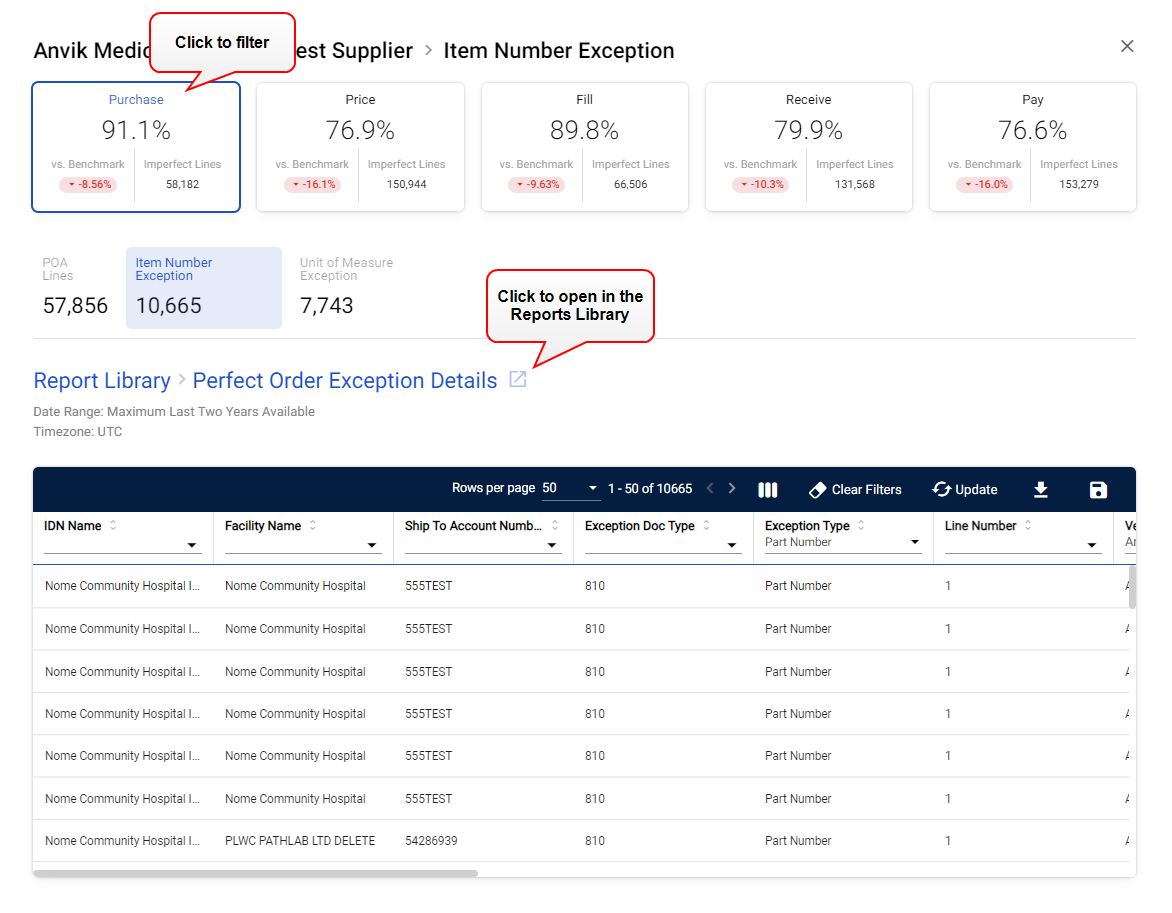
 icon. The details page opens.
-
Click a different KPI category card to filter the results by that data type (optional).
-
Use the exception columns to filter the results (optional).
Tip: The application automatically applies basic exception filters, but you can further filter the data as needed.
-
Export or save the information.
 To export the information
-
Click the Export
 icon to export the information to a .csv or .txt (tab or pipe delimited) file
To save the information as a report in My Reports
-
Click the Save Report
 icon. The Save Report dialog box opens.
 -
Click Save.
-
Click the Reports
 icon in the left menu and select My Reports.
 -
Click the link in the Name column. The report opens.
-