Edit Your Preferences
You can edit your global preferences in the Orders application. In most cases, the system uses those settings across all My Exchange applications.
-
Click your user name to open a list of options.
-
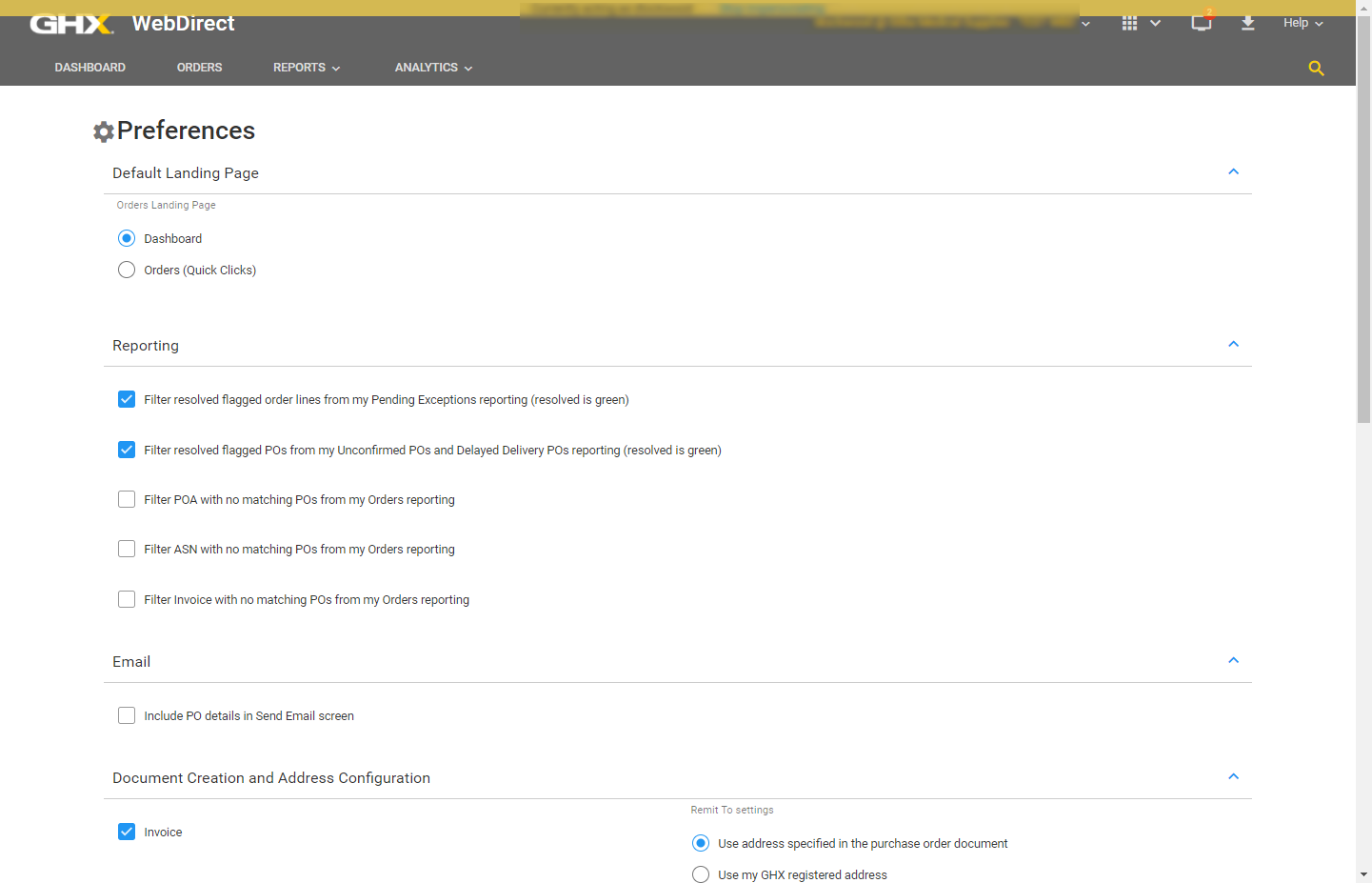
Select Preferences. The Preferences page opens.
-
Define your preferences.
 Options are:
Field Description Default Landing Page Select the page that displays when opening Orders. Options are:
-
Dashboard – Select this option to display the Dashboard page when opening the application
-
Orders (Quick Clicks) – Select this option to display the Orders (Quick Clicks) page when opening the application
Reporting Select report filters. Options are:
-
Filter resolved flagged order lines from my Pending Exceptions reporting (resolved is green) – Hide pending exceptions that have a green flag
-
Filter resolved flagged POs from my Unconfirmed POs and Delayed Delivery POs reporting (resolved is green) – Hide POs that have a green flag
-
Filter POA with no matching POs from my Orders reporting – Hide POs with this condition
-
Filter ASN with no matching POs from my Orders reporting – Hide POs with this condition
-
Filter Invoice with no matching POs from my Orders reporting – Hide POs with this condition
Email Select the following option to add PO details when you send email from the Quick Clicks and PO View details in Orders:
-
Include PO details in Send Email screen
Tip: Selecting this option allows you to edit the email subject line, add entries to the Address Book, add To and Copy recipients, comment, and copy and paste data from the preview contents.
Document Creation and Address Configuration Select the types of documents you will be creating and define the address to be used for those documents.
Tip: GHX recommends you define these addresses to avoid having to manually enter alternate address information in the future.
Options are:
-
Invoice – Select one of the following remit to address settings
-
Use address specified in the purchase order document
-
Use my GHX registered address
-
-
Ship Notice – Select one of the following ship from settings:
-
Use address specified in the purchase order document
-
Use my GHX registered address
-
Notifications & Subscriptions Select the following optional reports and define the delivery times. The default delivery time is 7:00 AM for the time zone defined in the user's profile.
-
Send daily Unconfirmed POs Report
-
Send daily Delayed Delivery POs Report
Product/Service Attribute Select the following items:
-
Product and service checkboxes to automatically include these on your document creation pages when you prepare return documents
Note: Your organization will still need to populate the value, as it does not automatically populate that data.
-
The Auto-populate Product item description with No item description sent on the PO checkbox to automatically populate the product item description field with this description when creating PO response documents
Note: The item description populates except when a value comes in on the PO. Information that comes in on the PO supersedes this "automatic" value.
Tip: Enabling this setting avoids rejection of returned documents that are caused by this field being blank.
-
-
Click Save.