Export Data to a .pdf File
- Click Invoices. The Invoices page opens.
- Use Quick Clicks, Work Lists, or Advanced Search to search for and filter the data.
- Click the checkbox to the left of invoices in the table to select them or click the checkbox in the column header to select all invoices in the search results.
Note: The maximum number of rows in the export is the same as the selected Rows per page.
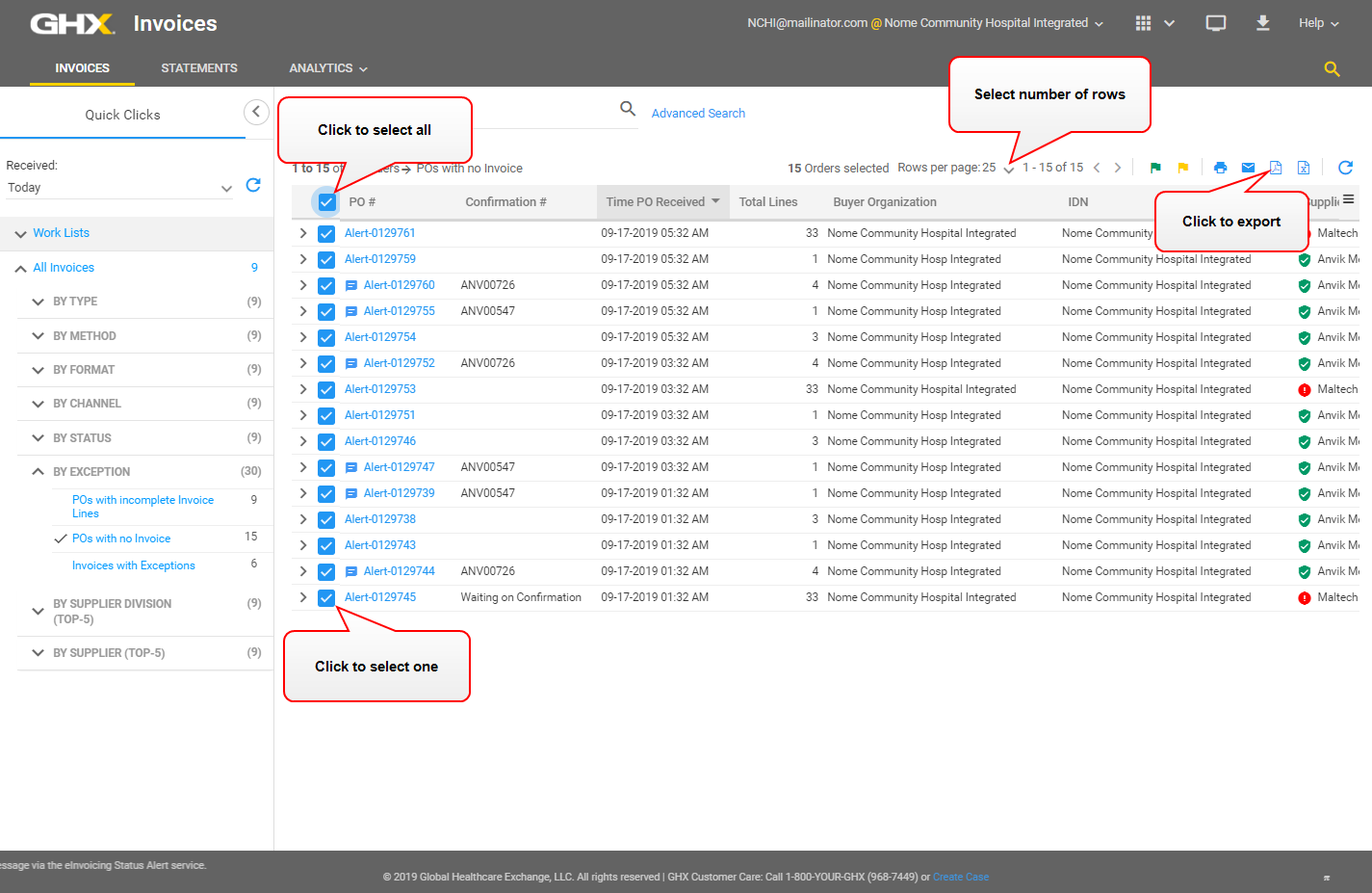
- Click the
 icon. The Export to PDF dialog box opens.
- Select a column option.
Options are:
- Only checked columns in the table: Select this button to include only those columns that you have selected from the Column select list (click the
 icon on the right side of the table heading)
 - All columns in the table (including hidden): Select this button to include all columns, including those that are hidden from view in the application
- Only checked columns in the table: Select this button to include only those columns that you have selected from the Column select list (click the
- Click Export. A message opens.
- Select a button to open or save the file.
- Click OK.