Export Report Data
- Click Analytics.
- Select a report.
- Search for invoices using the following filters.
Options are:
- Time Period: Choose from the following options: Today, Yesterday, Last 3 Days, Last 7 Days, Last 2 Weeks, Last 30 Days, and Last 3 Months
- Custom: Select from and to dates from a calendar
- Supplier Name: Type at least two characters of a supplier name
- Custom Search: Type a supplier organization name, separating multiple values using a semicolon
- Supplier Country: Type at least two characters of a country name
- Click Run Report.
- Select the checkboxes to the left of one or more invoices in the search results on the right.
- Click the
 icon to export the data to a .csv file. The Export dialog box opens.
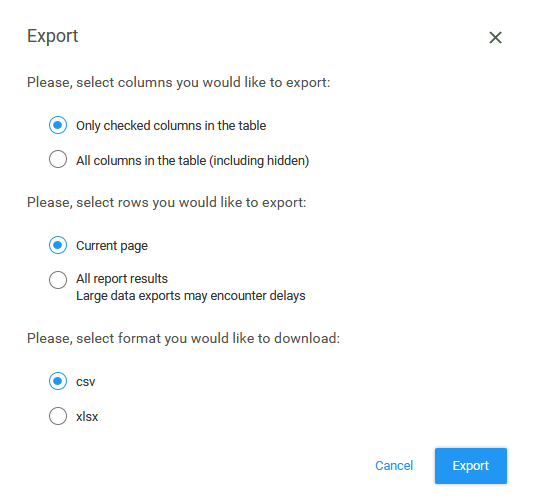
- Select a column option.
Options are:
- Only checked columns in the table: Select to include only those columns that you have selected from the Column select list (click the
 icon on the right side of the table heading)
 - All columns in the table (including hidden): Select to include all columns, including those that are hidden from view in the application
- Only checked columns in the table: Select to include only those columns that you have selected from the Column select list (click the
- Select a row option.
 Options are:
 - Current page: Exports the records from the page you currently have open
- All report results: Exports all records included in the report results
Tip: These options are available when you click the checkbox in the column header, which selects all invoices.
- Select a format option.
Options are:
- csv: Select to export the data as a .csv file
- xlsx: Select to export the data as a Microsoft Excel .xlsx file
- Click Export. A message opens.
Tip: The
 icon in the main menu indicates the number of files that are downloading and their progress.
 - Select a button on the message to open or save the file.
- Click OK. The application exports the information to an Excel spreadsheet.