Run Dashboard Reports
-
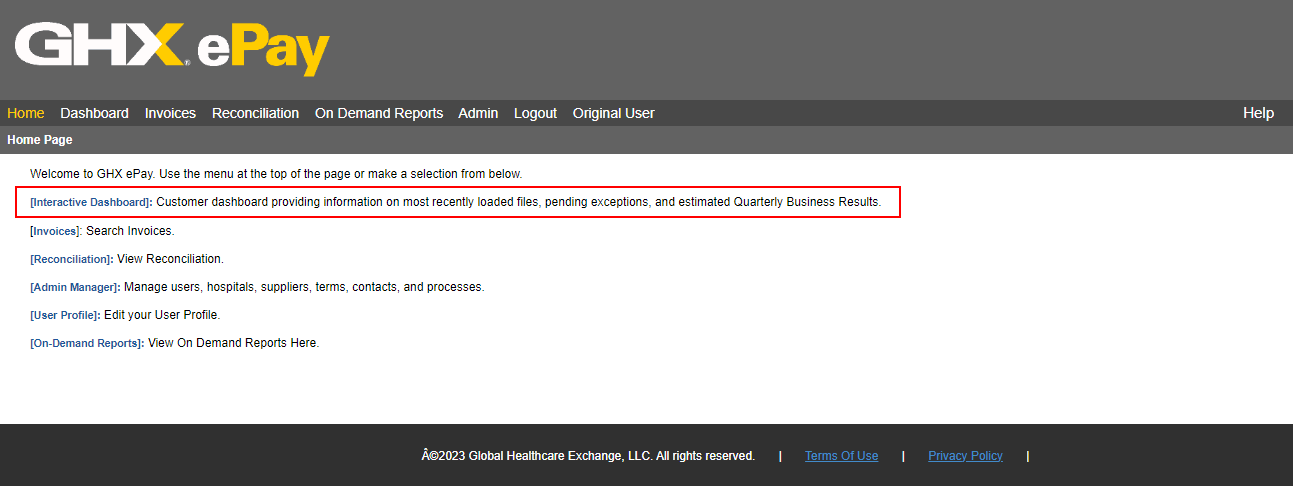
Open the ePay Home page.
-
Click the Dashboard or the Interactive Dashboard link. The dashboard for the current day opens.
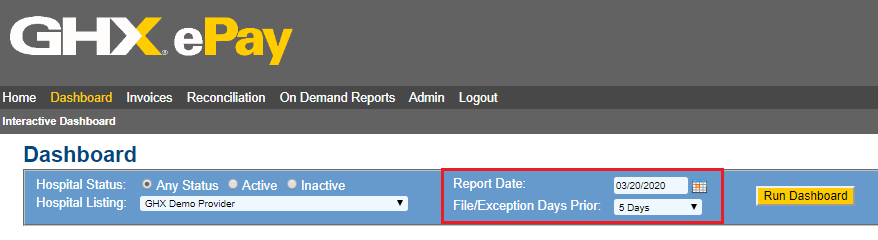
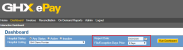
Tip: If you wish to run the dashboard for a different date, you may select a new report date. Historical data is only available in the dashboard from January 1, 2014 to the present date. The Report Date field defaults to the first of the current year, and the File/Exception Days Prior defaults to “5 Days”. These selected settings will display records for up to five prior days. These fields are editable. Exceptions will be displayed regardless of the date selected.
-
Define report criteria as needed.
-
If you have access to multiple hospitals, you must select the hospital on which to run the report from the drop-down Hospital Name menu.
-
If you have access to inactive hospitals, you need to select the inactive hospital status option from the drop-down menu; the hospital drop-down displays the list of hospitals.
Note: It is not common for users to have access to inactive hospitals.
-
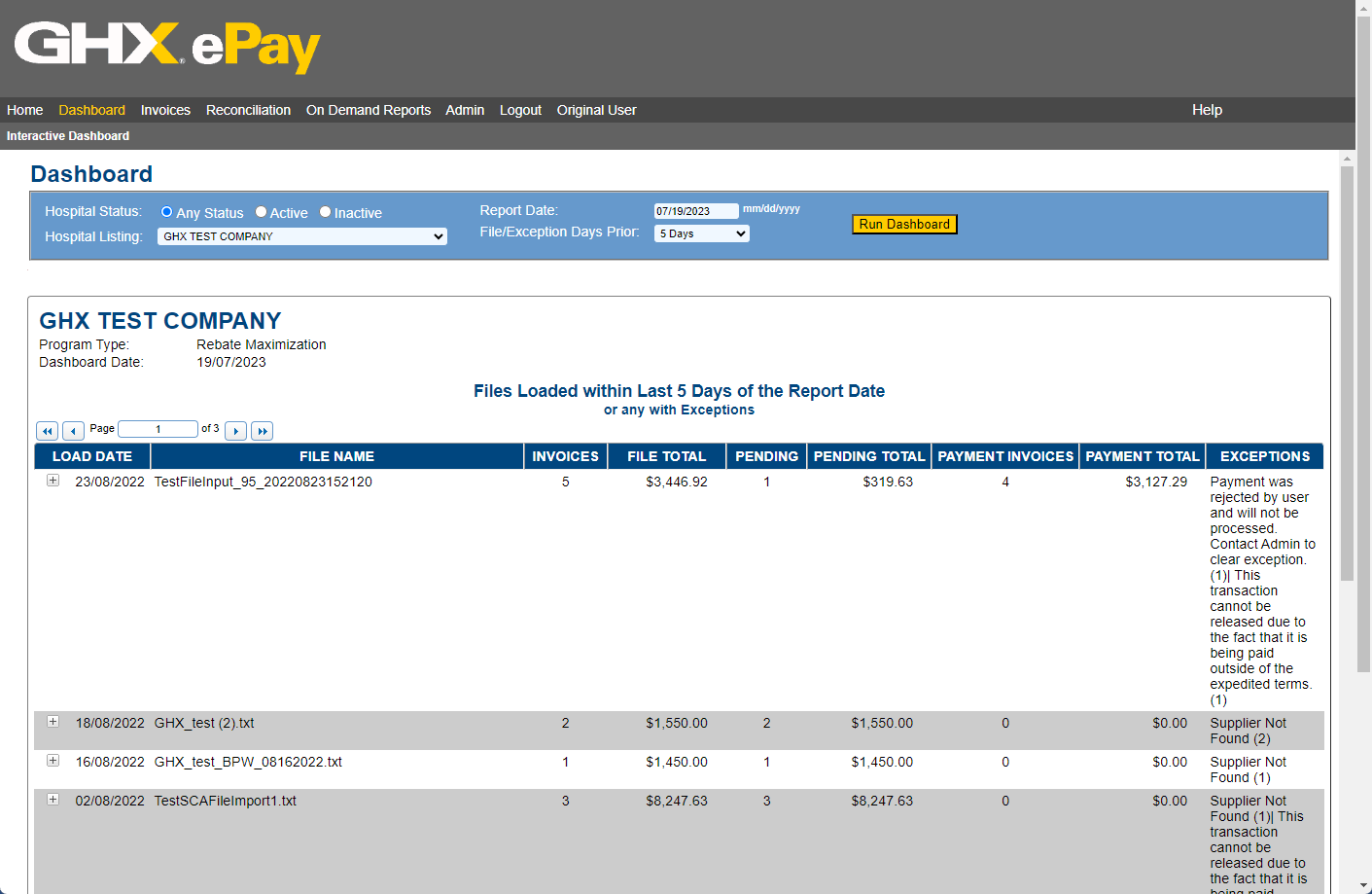
View the details, including the payment type.
 Payment Types:
Payment Type Name: ePay Version 2023 and Prior Payment Type Name: ePay Version 2024 and Later Payment Type Description Distributor ACH
ACH Distributor
ACH Payments sent to suppliers who are classified as distributors
expEDI-x ACH ACH Rebate Eligible ACH Payments with Days Sales Outstanding (DSO) specifications for rebate achievement Other ACH
N/A; this payment type does not exist in this version of ePay
ACH payments with Days Sales Outstanding (DSO) specifications for rebate achievement
Transaction ACH
ACH Transaction Fee
Per client agreement, fee-based ACH transaction with no Days Sales Outstanding (DSO) specification
Automated Payment ACH
N/A; this payment type does not exist in this version of ePay
Per client agreement, fee-based ACH transaction with no Days Sales Outstanding (DSO) specification
Hybrid Payment ACH Hybrid ACH Initially card payments that were processed as ACH due to supplier card processing limitations Virtual Card
Card
Payments processed using a virtual card process
-
Click Run Dashboard to produce the report details.
Note: You cannot export the dashboard to PDF or Excel; however, you can print the screen.