My Contract Updates
The My Contract Updates dashboard provides users a comprehensive view of contract statuses. It allows users to track and manage the following contract categories:
-
New Contracts
-
Expired Contracts
-
Updated Contracts
Users can filter contracts based on the following time frames:
-
Today
-
Last 7 Days
-
30 to 180 Days
Additionally, users can view contracts that are scheduled to be:
-
New
-
Expiring
-
Updated in the future
The dashboard displays a count of these contracts for each category. When you select a number tied to a contract category, the corresponding contracts are displayed at the bottom of the screen.
Navigation
This screen appears when you select My Contract Updates from the left-side navigation pane.
Field Descriptions
The following fields appear on the My Contract Updates screen.
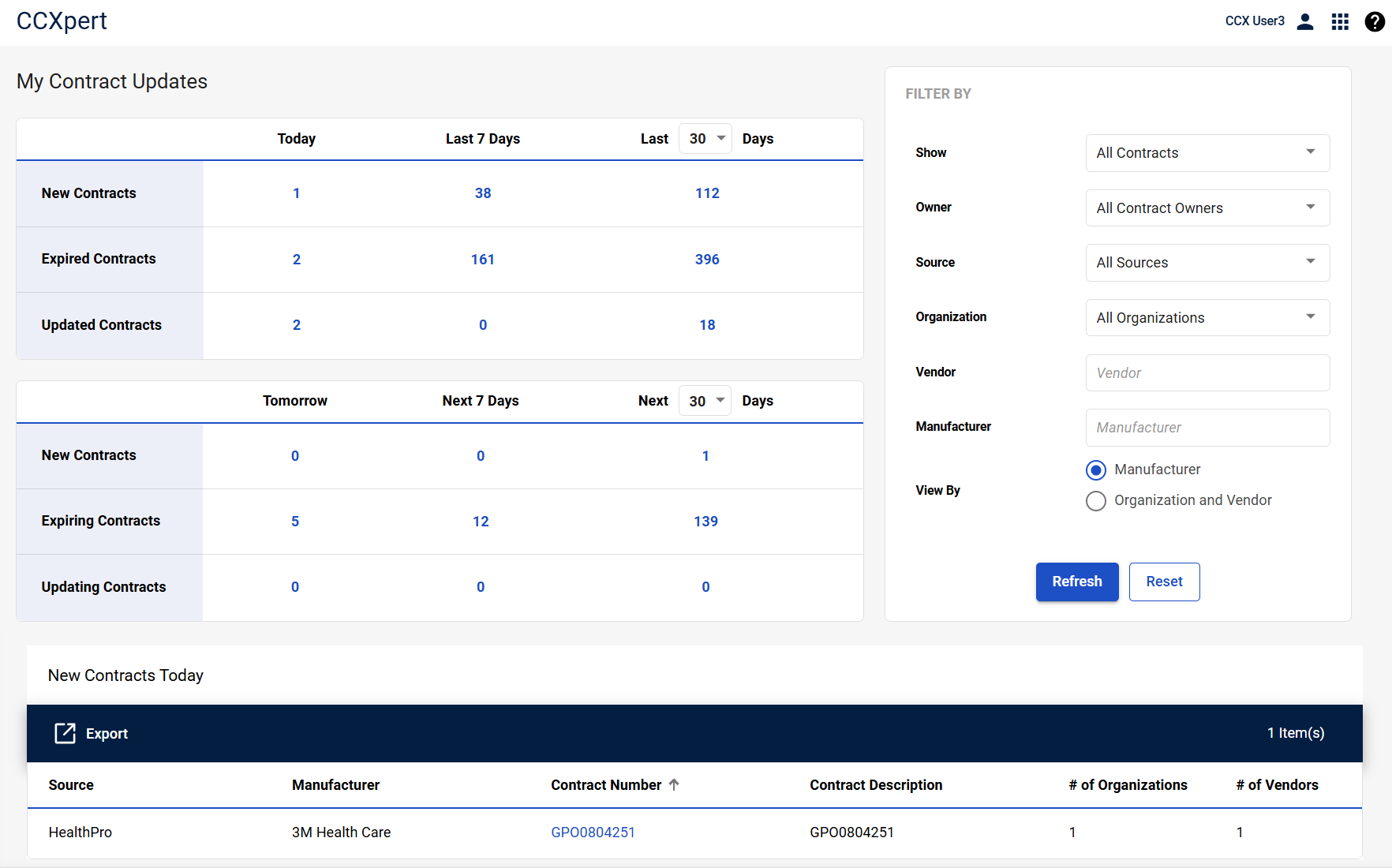
| Field | Field Description |
|---|---|
|
Contract Categories |
|
|
New Contracts |
Indicates the number of new contracts. Select to display the list of contracts in the table at the bottom of the screen. |
|
Expired/Expiring Contracts |
Indicates the number of contracts that expired in the last 7 days or will be expiring in the next 7 days. Select to display the list of contracts in the table at the bottom of the screen. |
|
Updated/Updating Contracts |
Indicates the number of contracts that were updated in the last 30, 60, 90, or 180 days or will be updated in the next 30, 60, 90, 180 days. Select to display the list of contracts in the table at the bottom of the screen. |
|
Filter By |
|
| Show |
Select from the following:
|
| Owner | Providers can assign an owner to each contract within CCXpert. To view only the contracts you manage, use this filter to select an owner’s name from the drop-down list, such as your own name. |
| Source | Indicates the data's origin, such as a GPO nightly feed or a locally uploaded contract. |
| Organization | If you manage multiple facilities and have the necessary permissions to view them, you can filter the data by individual facility here. |
| Vendor | Select a specific vendor to view only the contracts associated with that vendor. |
| Manufacturer | Select a specific manufacturer to view only the contracts associated with that manufacturer. |
| View By |
Indicate whether the contracts should be displayed by Manufacturer or Organization and Vendor.
|
| Reset | Select to return all filters to their default setting (All) or Refresh to reload the screen while retaining your applied filters. |
|
Contract Table Note: The name of the table changes depending on the contract category you selected. |
|
|
Export To Excel |
Select to export all contracts in the table in XLSX format. |
| # Item(s) | Indicates the number of items in the table. |
|
Source |
Displays the contract source. |
| Manufacturer | Displays the manufacturer associated with the contract. |
|
Contract Number |
Displays the contract number. Select to display the Contract Details screen. |
| Contract Description | Displays the contract description. |
|
# of Organizations |
Displays the number of organizations associated with the contract. |
| # of Vendors | Displays the number of vendors associated with the contract. |