Contract Details
Contract Details encompass a comprehensive set of functions and features used to manage, edit, and track various aspects of a contract. This includes tools for adding or modifying contract items, suppliers, vendors, and organizations and uploading or editing contract data in bulk. Key functionalities under Contract Details include adding attachments, adjusting prices, and applying surcharges, offering flexibility in managing contracts effectively.
Navigation
This screen appears when you either:
-
Select a Contract Number on the My Contract Updates screen.
-
Select a Contract Number after searching for a contract on the Contract Search screen.
-
Select a Contract Number after searching for an item on the Item Search screen.
Screen Tabs
The following tabs appear on the Contract Details screen:
-
Contract Details Tab: Displays key contract information, including ownership, status, and references for easy management.
-
Supplier Tab: Update details related to suppliers involved in the contract.
-
Agreement Tab: Modify the terms and conditions of the agreement.
-
Rebate Tab: Review and adjust rebate-related terms and figures.
-
Adjustment Tab: Make changes to pricing or other adjustments within the contract.
-
History Tab: View Item History and track changes made to contract items over time.
-
Attachments Tab: Allows users to view, upload, and delete documents related to the contract.
Field Descriptions
The fields in the top portion of the Contract Details screen vary depending on the selected tab. For descriptions of these fields, refer to the corresponding tab topics.
The following fields appear on every tab of the Contract Details screen.
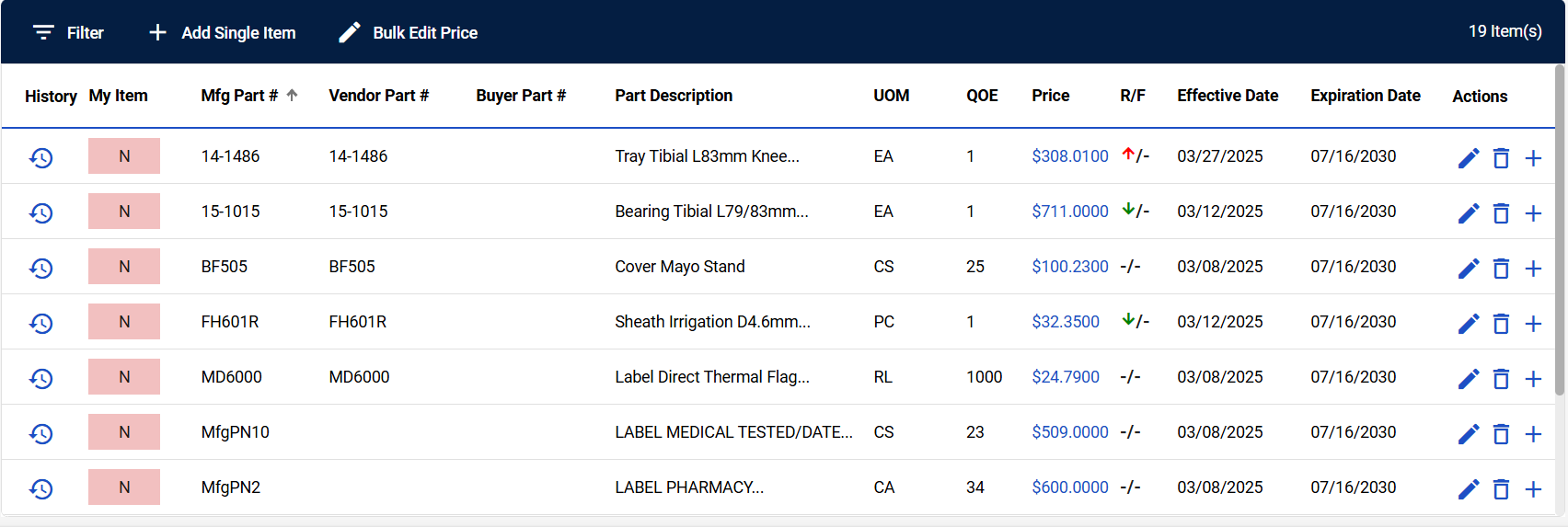
| Field | Field Description |
|---|---|
| Filter | Narrow down contract items based on specified criteria. Refer to Filter Contract Items for more information. |
| Add Single Item | Select to add one item to the contract. Refer to Add Single Item to a Contract for more information. |
| Bulk Edit Price | Select to edit the price for multiple items at once. Refer to Bulk Edit Price On Contract for more information. |
| # Item(s) | Displays the number of items listed in the table. |
| History | Select to display a record of changes or updates made to the contract. |
| My Item | Indicate whether an item is considered a "My Item." My Items are similar to a "favorite" item. When a purchase order is processed through the Exchange and an item price validates it to a contract in CCXpert. Refer to Change My Item Value for more information. |
| Mfg Part # | Displays the part number assigned by the manufacturer for the item. |
| Vendor Part # | Displays thepart number assigned by the vendor for the item. |
|
Buyer Part # |
Displays thepart number assigned by the buyer for the item. |
| Part Description | Displays a brief description or details of the item. |
| UOM | Displays the unit of measurement for the item (e.g., each, box). |
| QOE | Displays the quantity of the item ordered or expected to be ordered. |
|
Price |
Displays the cost of the item listed in the contract. Note: Prices with an asterisk (*) indicate price adjustments. Hover over the desired price to learn more.
|
| R/F | Displays the rebate or discount percentage applied to the item. |
|
Effective Date |
Displays the date when the contract terms or prices come into effect. |
| Expiration Date | Displays the date when the contract terms or prices expire. |
|
Actions |
Displays available options for managing or modifying contract items (e.g., edit, delete and add). Available actions may include:
|