Notifications
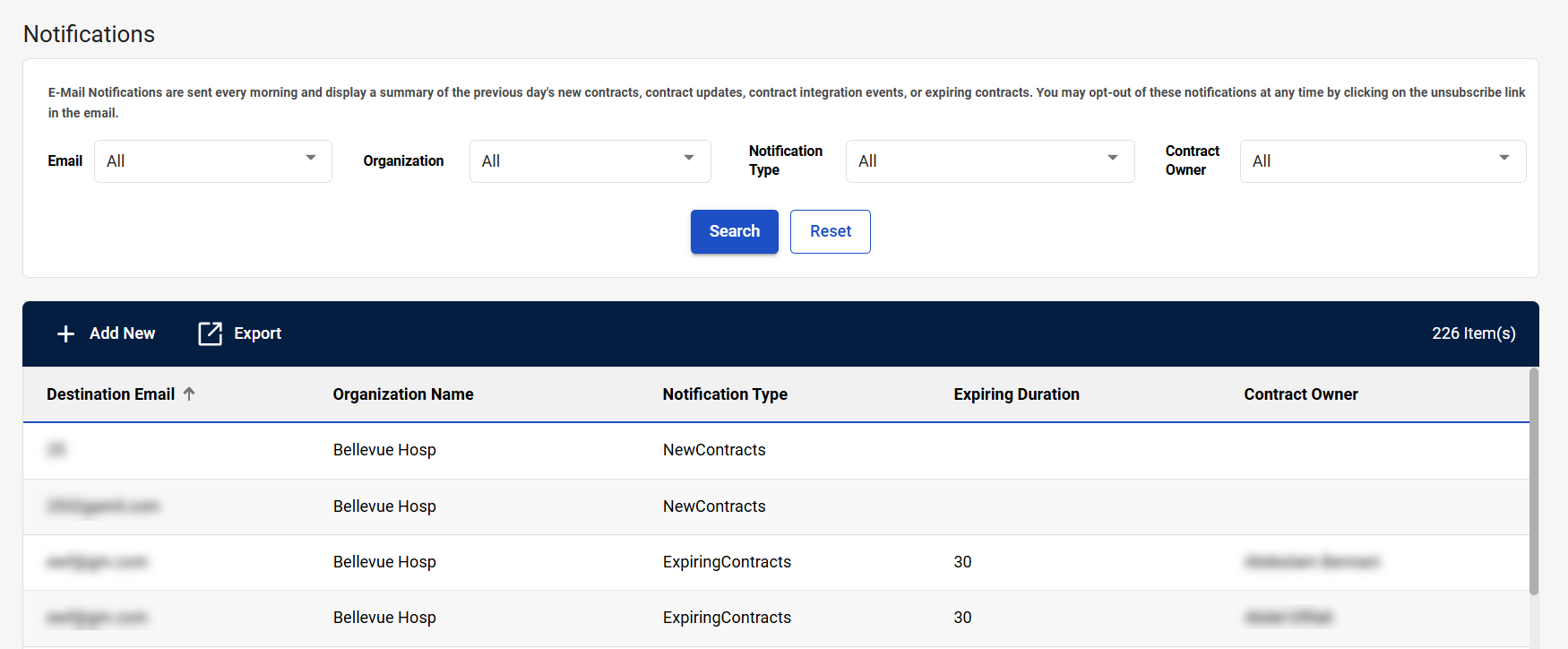
CCXpert can send email notifications every morning with a summary of the previous day’s new contracts, contract updates, contract integration events, or expiring contracts. On the Notifications screen, you can configure which email addresses will receive which notification types.
Navigation
This screen appears when you select Configuration > Notifications from the left-side navigation pane.
Prerequisites
Only users with the Admin user role can access this screen.
Available Actions
On the Notifications screen, you can:
Field Descriptions
The following fields appear on the Notifications screen.
|
Field |
Field Description |
|---|---|
|
|
Select an email address to search for notifications being sent to this email address. |
|
Organization |
Select an organization to search for notifications associated with this organization. |
|
Notification Type |
Select a notification type. The available options are:
|
|
Contract Owner |
Select the contract owner to search for notifications regarding this contract owner. |
|
Search |
Select to search for email notifications after entering search criteria. |
|
Reset |
Select to reset the search criteria. |
|
Notifications Table |
|
|
+ Add New |
Select to create a new email notification recipient. The Subscribe to E-Mail Notifications Window opens. |
|
Export |
Select to export a list of all recipients that are receiving email notifications. |
|
# Item(s) |
Displays the number of recipients listed in the table. |
|
Destination Email |
Displays the email address to which a notification is being sent. |
|
Organization Name |
Displays the name of the organization the subscription is configured for. |
|
Notification Type |
Displays the type of email notification that is being sent. |
|
Expiring Duration |
Displays the number of days before a contract expires that will trigger the contract expiration email. |
|
Contract Owner |
Displays the contract owner associated with the subscription. A contract owner is displayed here only if an email subscription is configured to send out a notification based on that contract owner. |
Subscribe to E-Mail Notifications Window
If you need to send email notifications to a new recipient, you can do so from the Subscribe to E-Mail Notifications window. This window appears when you select + Add New on the Notifications screen.
The following fields appear on the Subscribe to E-Mail Notifications window. Required fields are marked with a red asterisk (*).
|
Field |
Field Description |
|---|---|
|
Notify Me Of* |
Select the notification type you want to create. The available options are:
Note: You can only select one notification type.
|
|
I want to be notified about the contracts that expire in* |
Indicate how far in advance you want to be notified of expiring contracts. The available options are:
This field appears when you select Expiring Contracts in the Notify Me Of field. |
|
Organization* |
Select the organizations you want to receive contract notifications for. |
|
Destination Email Address(es)* |
Enter the email addresses you want to send this notification to. You can enter multiple email addresses separated by a comma. |
|
Contract type |
Indicate whether you want to notify the recipient about all expiring contracts or expiring contracts related to a specific contract owner. The available options are:
This field appears when you select Expiring Contracts in the Notify Me Of field. |
|
Contract Owner* |
Select the contract owners you want to notify the recipient about. This field appears when you select Expiring Contracts in the Notify Me Of field and Filter By Contract owner in the contract type selector. |
|
Subscribe |
Select to create the email notification and subscribe the indicated email addresses to the notification. |
|
Reset |
Select to reset the subscription. |