Vendor Adjustments
Adjustments are either markups or mark-downs. Sometimes, rather than re-negotiating a contract, trading partners decide to implement an adjustment to a specific vendor or an entire contract. Adjustments can be applied to GPO contracts and local contracts. Adjustments and surcharges are different. A surcharge, for something like a shipping charge, is a dollar amount added on top of the base price. An adjustment is a percentage applied to the base price (either positive or negative).
The Vendor Adjustments screen allows you to create vendor-level adjustments. Vendor-level adjustments are the highest level of adjustment; these adjustments apply to all contracts for a selected vendor.
Navigation
This screen appears when you select Configuration > Vendor Adjustments from the left-side navigation pane.
Prerequisites
Only users with the Admin user role can access this screen.
Available Actions
On the Vendor Adjustments screen, you can:
Field Descriptions
The following fields appear on the Vendor Adjustments screen.
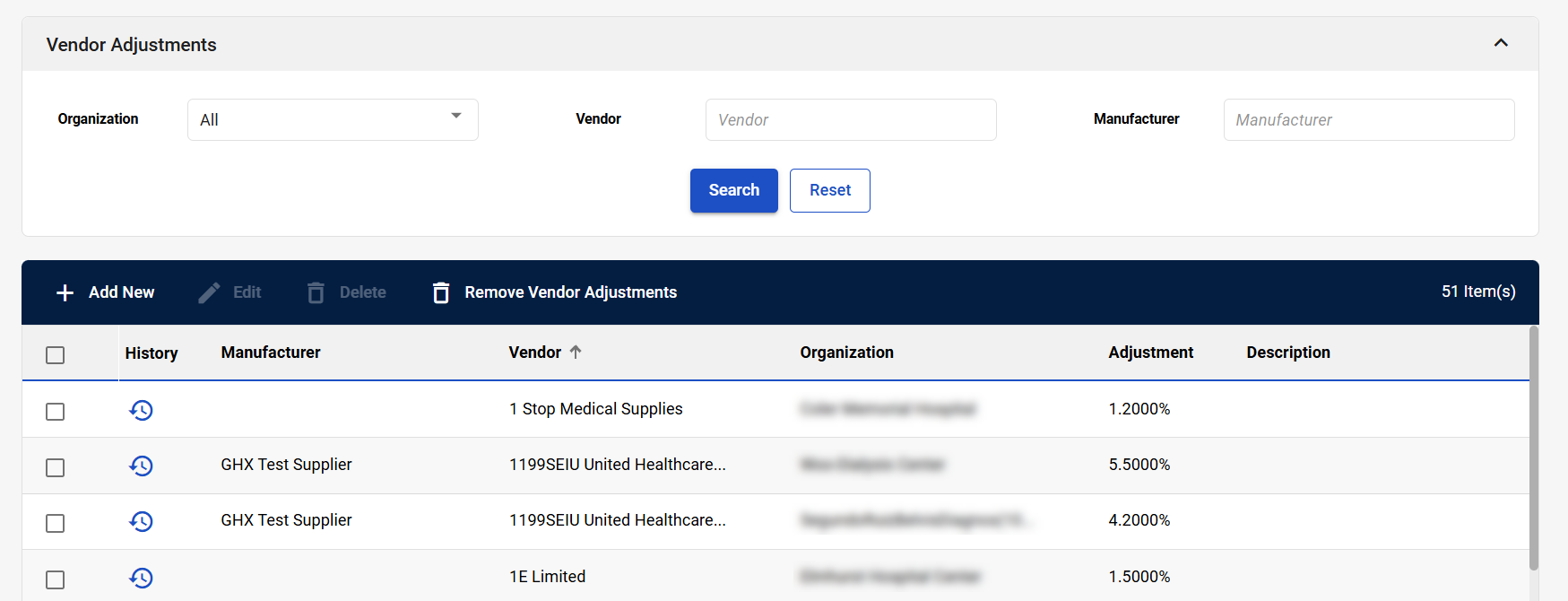
|
Field |
Field Description |
|---|---|
|
Vendor Adjustments |
|
|
Organization |
Select an organization to view adjustments associated with the organization. |
|
Vendor |
Enter a vendor to view adjustments associated with the vendor. Matching vendors are suggested as you type. |
|
Manufacturer |
Enter a manufacturer to view adjustments associated with the manufacturer. Matching manufacturers are suggested as you type. |
|
Search |
Select to search for vendor adjustments after entering search criteria. |
|
Reset |
Select to reset your search criteria. |
|
Vendor Adjustments Table |
|
|
+ Add New |
Select to add a new vendor adjustment. The Create Adjustments window opens. Refer to Create Adjustments Window and Add New Vendor Adjustments for more information. |
|
Edit |
Select to edit a vendor adjustment. This button is active once you select a vendor adjustment. Refer to Edit Existing Vendor Adjustments for more information. |
|
Delete |
Select to delete a single vendor adjustment. This button is active once you select a vendor adjustment. Refer to Delete Individual Vendor Adjustments for more information. |
|
Remove Vendor Adjustments |
Select to delete all adjustments for a specific vendor. The Remove Vendor Adjustments window opens. Refer to Remove Vendor Adjustments Window and Remove Vendor Adjustments in Bulk for more information. |
|
# Item(s) |
Displays the number of vendor adjustments listed in the table. |
|
Select checkbox |
Select a vendor adjustment to take action on it. |
|
History |
Select to view a log of all previous vendor-level adjustments. The Vendor Adjustment History window opens.
|
|
Manufacturer |
Displays the manufacturer associated with the vendor adjustment. |
|
Vendor |
Displays the vendor associated with the vendor adjustment. |
|
Organization |
Displays the organizations associated with the vendor adjustment. |
|
Adjustment |
Displays the vendor adjustment. |
|
Description |
Displays a description of the vendor adjustment if it is available. |
Create Adjustments Window
If you need to create a new adjustment, you can do so by selecting + Add New. The Create Adjustments window opens. Fill out the required fields and select Save. The new vendor adjustment is created.
Required fields are marked with a red asterisk (*).
|
Field |
Field Description |
|---|---|
|
Choose the Organization(s) for this adjustment* |
Select the organizations associated with this adjustment. |
|
Enter a Description for this adjustment |
Enter a description of this adjustment. |
|
Enter the adjustment using the following format: +4.2500 or -4.2500 * |
Enter the adjustment. Use the following format: +4.2500 or -4.2500 |
|
Choose the Vendor for this adjustment * |
Select the vendor associated with this adjustment. |
|
Is this adjustment specific to a Manufacturer? |
Indicate whether this adjustment is specific to a manufacturer. If you answer Yes, the Manufacturer field appears. |
|
Manufacturer* |
Select the manufacturer associated with this adjustment. This field appears when you select Yes to the question Is this adjustment specific to a Manufacturer? |
Remove Vendor Adjustments Window
If you need to remove all adjustments from a vendor, you can do so by selecting Remove Vendor Adjustments. The Remove Vendor Adjustments window opens. Select a vendor to remove all adjustments associated with that vendor, and then select Remove. All adjustments are removed from that vendor.
|
Field |
Field Description |
|---|---|
|
Vendor list |
Displays a list of vendors. Select the checkbox to the left to select the vendor. |
|
Remove |
Select to remove all adjustments from the selected vendor. |
|
Cancel |
Select to cancel the adjustment removal and close the window. |