Beginner’s Guide to My Exchange: Orders
This topic is intended as a supplement to your My Exchange: Orders instructor-led training. Use this guide to:
This guide also contains helpful links to various My Exchange Help topics, the GHX Community, and etc.
Access My Exchange: Orders
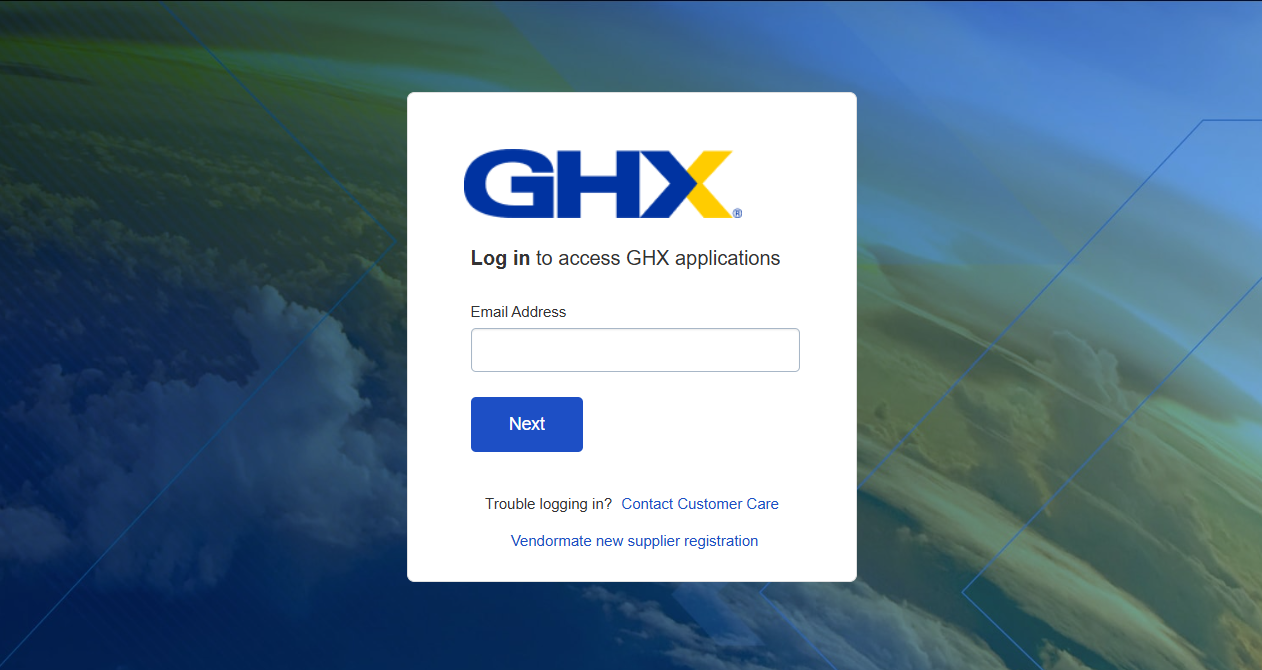
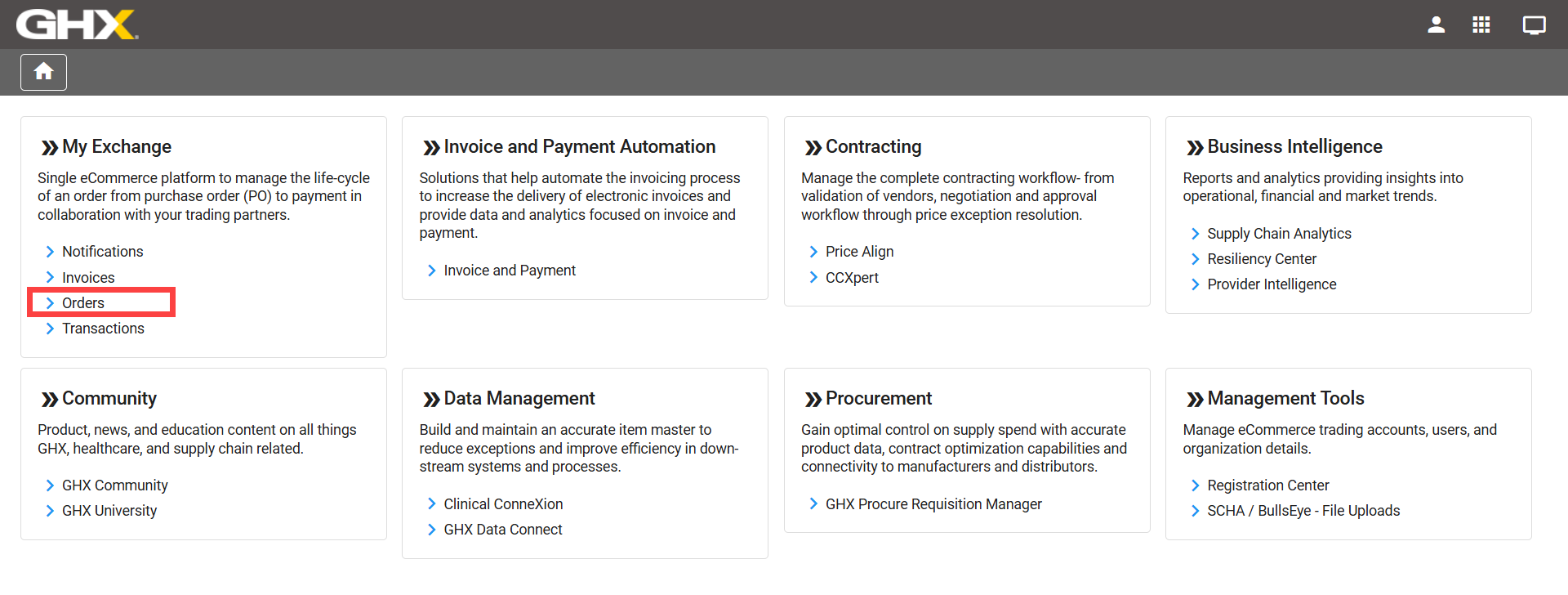
Access the My Exchange: Orders application at login.ghx.com using your login credentials. Select Orders from the My Exchange tile.
Quick Start Checklists
Set and Forget
Use the following checklists to optimize your settings within My Exchange: Orders
-
Set user preferences according to the recommendations on page 8 of this guide
-
Set your preferred column view and/or hide columns for PO list views
-
Review existing Work Lists at your organization
-
Optional: Make copies of the Work Lists that will be helpful to you
Daily Tasks
Use the following checklists as often as needed to efficiently move through your workflow and ensure that you’ve completed all necessary tasks.
-
Make sure that orders are sent:
-
Assess: Navigate to Quick Clicks > Orders > Status to examine Unconfirmed POs and Parked POs
-
Connect: Select the relevant PO line(s) within the PO Details, then select the envelope icon to email your supplier (and/or internal team members)
-
Document: Add a Yellow Flag to take ownership of the POs that you’re working on, and leave a note with the steps you’ve taken
-
-
Open Orders and review sent POs (prioritize using the “bottoms up” rule):
-
By Status Alert: Resolve issues that will prevent you from receiving the items (backorders, rejected orders, etc.)
-
By Pricing: Manage vendor price discrepancies before the invoice reaches Accounts Payable (AP)
-
By Item: Correct data discrepancies such as quantity, UOM, etc.
-
-
Update POs with information you have verified by the end of the day before invoices reach Accounts Payable (AP)
-
Update your materials system* within 24 hours, according to your department’s business processes
Common Exception Types
The following table contains a list of common exception types, their definitions, questions to ask to help determine where the exception came from, and actions you can take to help resolve the exception.
|
Exception Type |
Definition |
Question(s) to Ask |
Action(s) |
|---|---|---|---|
|
Price Exception |
The PO line price is not equal to the POA or invoice line price. |
Is this item on contract? Was it price validated by CCX? |
|
|
Unit of Measure (UOM) |
The PO line unit of measure (UOM) is not equal to the POA, Advance Ship Notice (ASN), or invoice line UOM. |
Did the supplier UOM change the price?
Is the UOM different from the contracted UOM? |
|
|
Contract Price Exception |
The PO line price is not equal to the contract price (based on CCXpert data). |
Is it within our threshold/tolerance levels, allowing it to be paid/ignored? |
|
|
Accepted - Schedule Date Pending |
The item has been accepted but the schedule date is pending. |
What is the supplier’s lead time?
What is the supplier’s cut-off time? |
Communicate lead times to requestor. |
|
Accepted - Substitution Made |
The supplier substituted the item with a similar product where related discrepancies (or exceptions) will exist for the PO line (for example, SPN, UOM, QTY, or price). |
What business processes does my organization have in place that dictate how substitutions are managed? |
|
|
Backordered |
Item is backordered - some suppliers may provide estimated ship dates.
|
Do we have enough stock on hand until the back order is received?
If not, do we need to find a substitute? |
Communicate the backorder with your requestor, who will determine the action needed. |
|
Deleted |
Item has been deleted - some suppliers may provide additional deletion reasons. |
Did the supplier provide any information in the comments field? |
If no reason provided, contact supplier. |
|
Not on PO |
The supplier indicated that an item in the POA is not on the PO.
This normally occurs when suppliers substitute other products in the POA to replace items ordered in the PO. |
Does this supplier utilize the Item Substitution code?
Did someone call the supplier to have an item added to our order?
Was this added after the supplier's cut-off time?
Do I need to update the PO? |
|
|
Not on POA |
The supplier did not include a PO line item on the POA.
This normally occurs when suppliers substitute other products in the POA to replace items ordered in the PO. Some suppliers also issue multiple partial POAs when all items are not available at the same time. |
"Why wasn't this item(s) confirmed?" |
Contact supplier. |
|
Part Number |
The PO line supplier part number is not equal to the POA, ASN, or invoice supplier part number. |
What is the correct part number? |
|
|
Price |
The PO line price is not equal to the POA or invoice line price. |
Is this item on contract?
Was it price validated by CCX?
Is it within our threshold/tolerance levels allowing it to be paid/ignored? |
|
|
Quantity |
The PO line quantity is not equal to the POA, ASN, or invoice line quantity.
Note: My Exchange does not create a zero (0) value quantity exception for Status Alert exceptions.
|
"Do we accept partial qty if we are a fill/kill org?" "Did the remaining qty go to Backorder"
|
|
|
Rejected |
The supplier used an ACK status code of "IR" (Item Rejected) in the POA, which indicates the item has been rejected.
Some suppliers may provide additional rejection reasons. |
Did the supplier provide a reason for rejection? Is there a duplicated line in My Exchange with a new item?
|
Contact supplier |
|
UOM |
The PO line unit of measure (UOM) is not equal to the POA, Advance Ship Notice (ASN), or invoice line UOM. |
Did the supplier UOM change the price? Is the UOM different from the contracted UOM?
|
|
User Preferences: Best Practices
Access Your Preferences
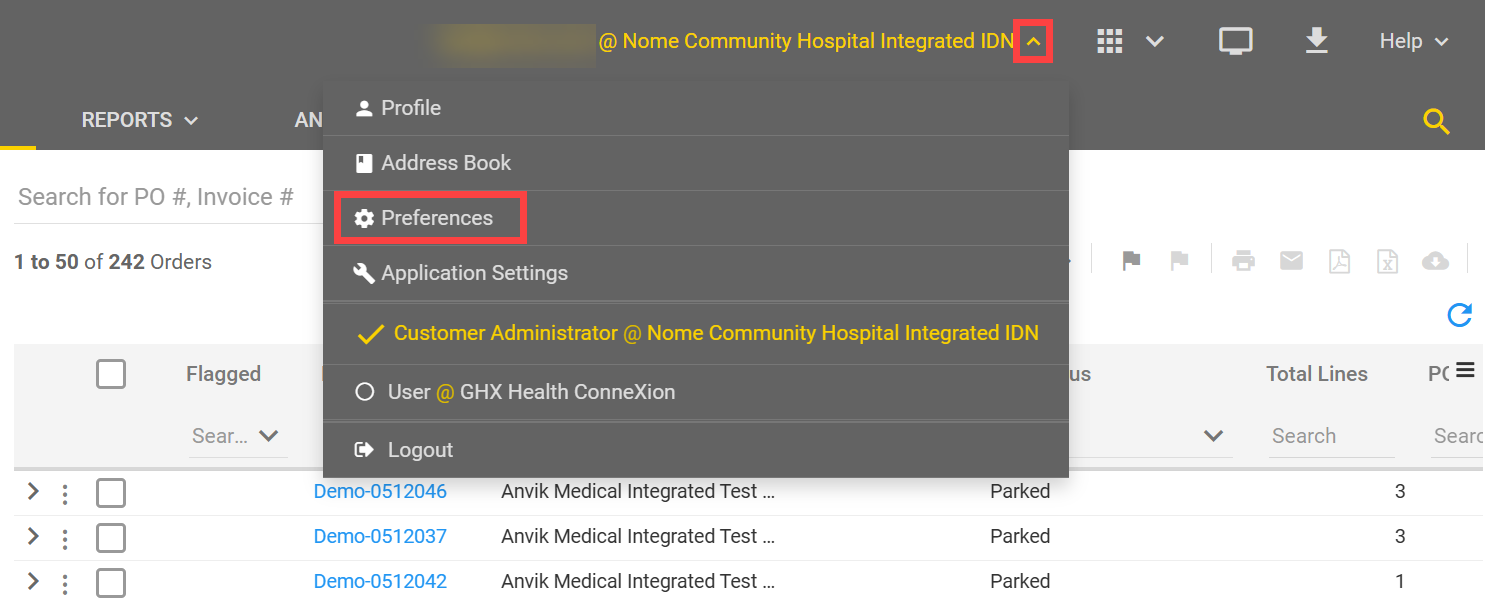
Access your user preferences by selecting the down arrow next to your username and selecting Preferences.
Recommended User Settings
Do the following to set up your recommended user settings:
-
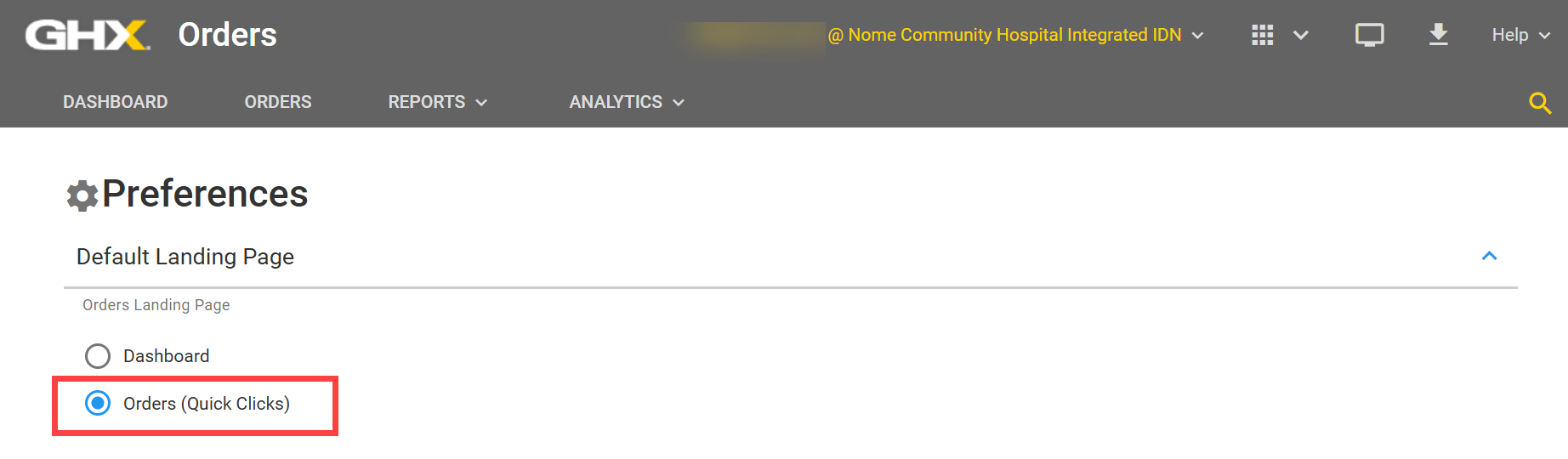
Select Orders (Quick Clicks) as your default landing page. This is where you will work the majority of your orders work in My Exchange.
-
Enter your Buyer ID and select Add. This allows you to filter orders by ID and focus only on the ones you need to take care of, when working exceptions.

-
Check the box next to Include PO details in Send Email screen. When you send emails to trading partners, detailed PO information will automatically be included.

-
Enter your preferred price tolerance if it is listed in your materials system.

-
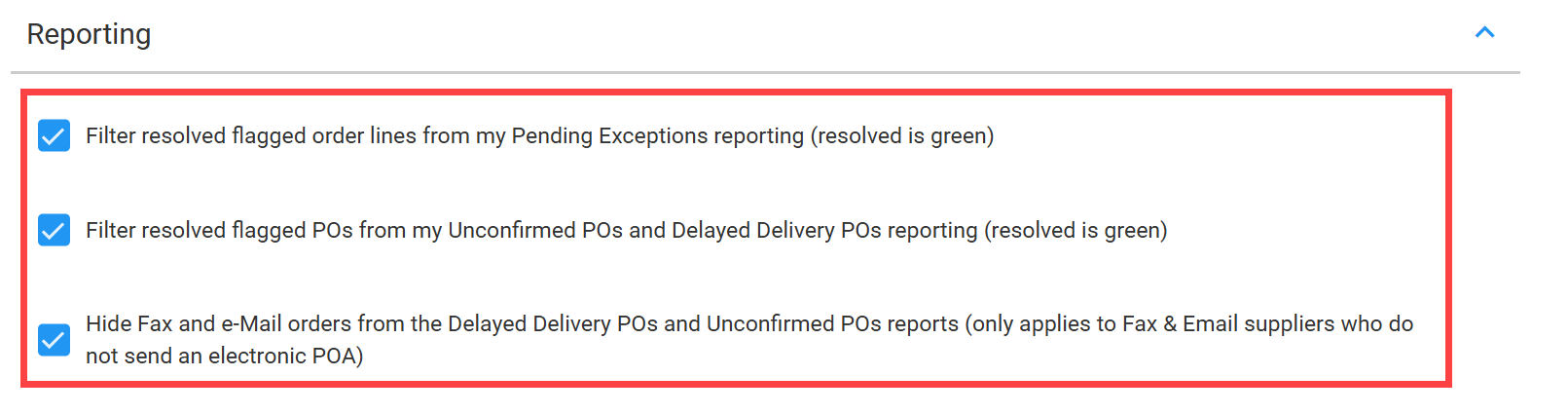
Select Filter resolved flag order lines from my Pending Exceptions reporting to hide resolved exceptions from your view.
-
Select Filter resolved flagged POs from my Unconfirmed POs and Delayed Delivery POs reporting to hide those resolved issues from your view.
-
Select Hide Fax and e-Mail orders from the Delayed Delivery POs and Unconfirmed POs reports to hide slower orders from your view.
-
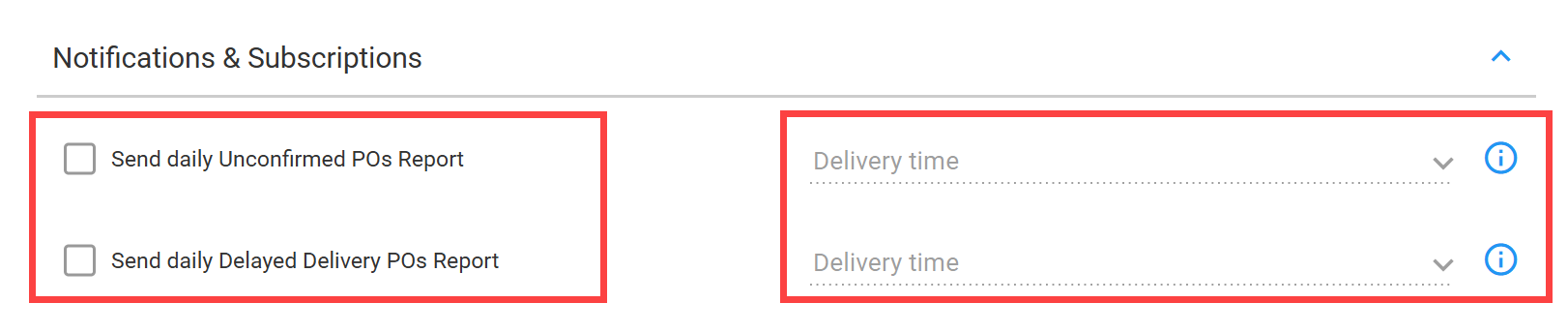
Select to have Orders send you daily Unconfirmed and Delayed Delivery POs, then enter a delivery time.
-
Scroll down and select Save to apply these changes.
Helpful Definitions
The following tables include definitions of terms that are frequently used when working in My Exchange.
|
Term |
Definition |
|---|---|
|
810/Invoice |
Sends billing information in an electronic document to a trading partner when products ship. Provides payment information regarding products or services provided. |
|
850/Purchase Order (PO) |
Provides goods or services purchase information to the trading partner. |
|
855/Purchase Order Acknowledgement (POA)
|
Acknowledges receipt of a purchase order and confirms product availability. Pricing is included but may not always represent invoiced price. |
|
856/Advance Ship Notice (ASN)
|
Acknowledges purchase order receipt and includes shipping information. |
|
Electronic Data Interchange (EDI) |
A standard method for electronically transmitting data between companies that drives automation and increases efficiencies |
|
EDI Integrated |
Trading partners that transact through GHX using Electronic Data Interchange (EDI) |
|
Non-EDI Integrated
|
Trading partners that do not have EDI capability |
Work List Tips and Tricks
Work List Best Practices
For examples of common work lists that can help your organization monitor transactions, refer to the Work Lists Best Practice job aid.
Work List Fields
For information about the different details you can use to customize a work list to pull exactly what you want, refer to the Use Advanced Search for Orders topic.
Customer Support Tips and Tricks
Need more help? Create a support case by sending an email to support@ghx.com with all relevant information related to the issue, by calling 1-800-968-7449 and speaking directly with our support team, or by opening a case through the GHX Community.
Email Best Practices
Use the following recommendations when logging support cases to ensure a more effective and timely resolution to your issues.
-
Ensure that the email Subject contains two parts:
-
The GHX solution (product) with which you are experiencing an issue or have a question
-
The reason for creating the support case (ticket), such as Exchange | 855 Error or Registration Center (new) | New user registration missing
-
-
Ensure that the body of the message contains the necessary information to accurately identify your organization and a description of your issue, which includes:
-
Contact at your organization GHX Customer Care can work with to resolve the issue
-
Name
-
Phone number
-
Email address
-
Organization name
-
Solution/System product – For example, Exchange, Registration Center, My Exchange, G-Fax, MetaTrade, etc.
-
Brief, direct summary of the issue you are experiencing
-
Expected outcome – why is this an issue / what is your expected result, action, outcome
-
-
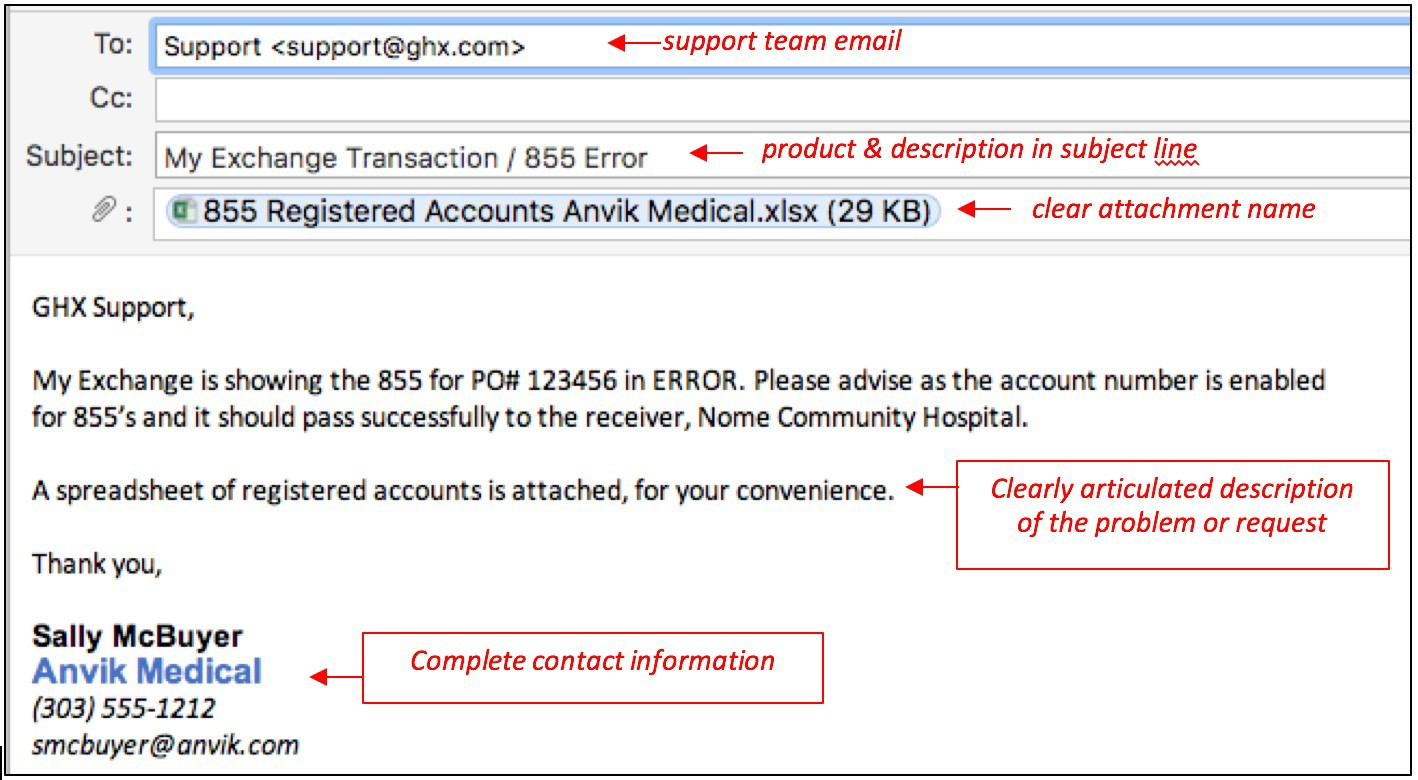
Review this example of the information to provide, if needed:
-
Contact: Sally McBuyer 555-555-5555 smcbuyer@anvik.com
-
Org: Anvik Medical
-
Trading Partner: If applicable
-
Product: My Exchange- 855 Error
-
Issue: My Exchange is showing the 855 for PO# 123456 in ERROR
-
Expected outcome: Please advise as the account number is enabled for 855s and it should pass successfully to receiver
-
Attachment: Identify what is attached and for what purpose
-
Support Case Best Practices
Take the following steps to open a support case through the GHX Community:
-
Log in to the GHX Community.
-
Already a Community member?
-
Go to https://ghx.my.site.com/s/.
-
Log in with your username (typically your work email) and password.
-
-
Not a Community member?
-
Go to https://ghx.my.site.com/s/.
-
Select the Not a member? link and follow the onscreen instructions - you will receive a password via email from Salesforce within 48 hours.
-
-
-
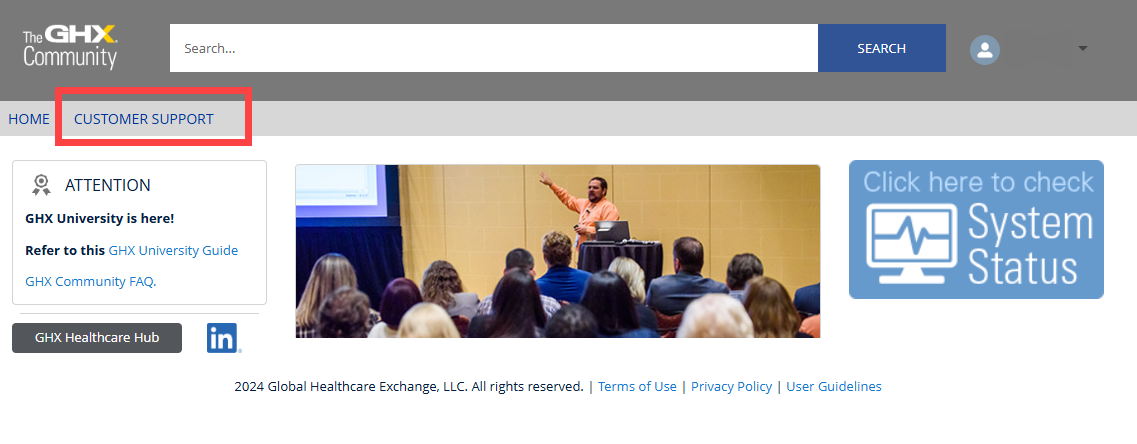
Select Customer Support. The Cases home page opens and contains a list of cases that you have already created.
-
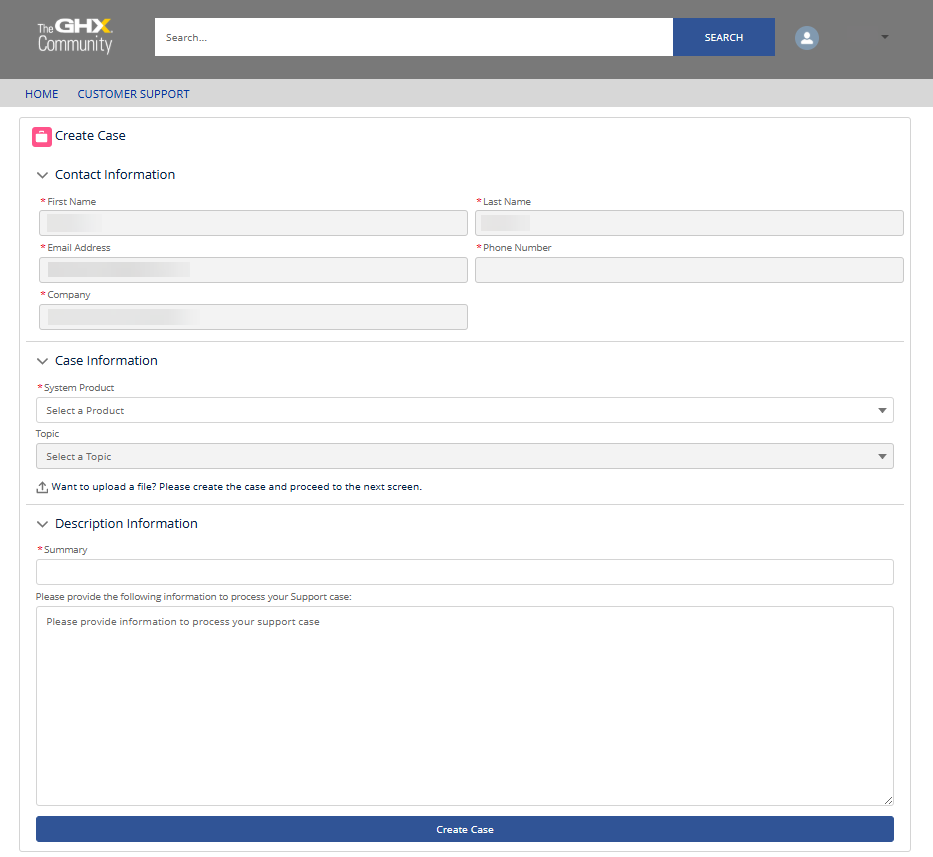
Select Create Case. The Create Case page opens.
-
Select the application or product name for which you are requesting assistance from the System Product list. If you are unsure, select Unknown.
-
Select the appropriate classification for the issue from the Topic list.
-
Enter the Summary for your case. Be as thorough as you can.
-
Enter your detailed Description information. The more details you include, the quicker GHX Customer Care can resolve your issue.
-
Select Create Case. The case is created and forwarded to the Customer Care team for action. You will receive an email message with a case number to reference, should you need to contact GHX directly.