Use Advanced Search for Orders
Tip: If you do not see your orders in the advanced search, go to the Preferences page and check the buyer ID field. Ensure the capitalization is correct (that it matches the orders) and that there are no extra spaces in the buyer ID name.
- Click Orders in the main menu.
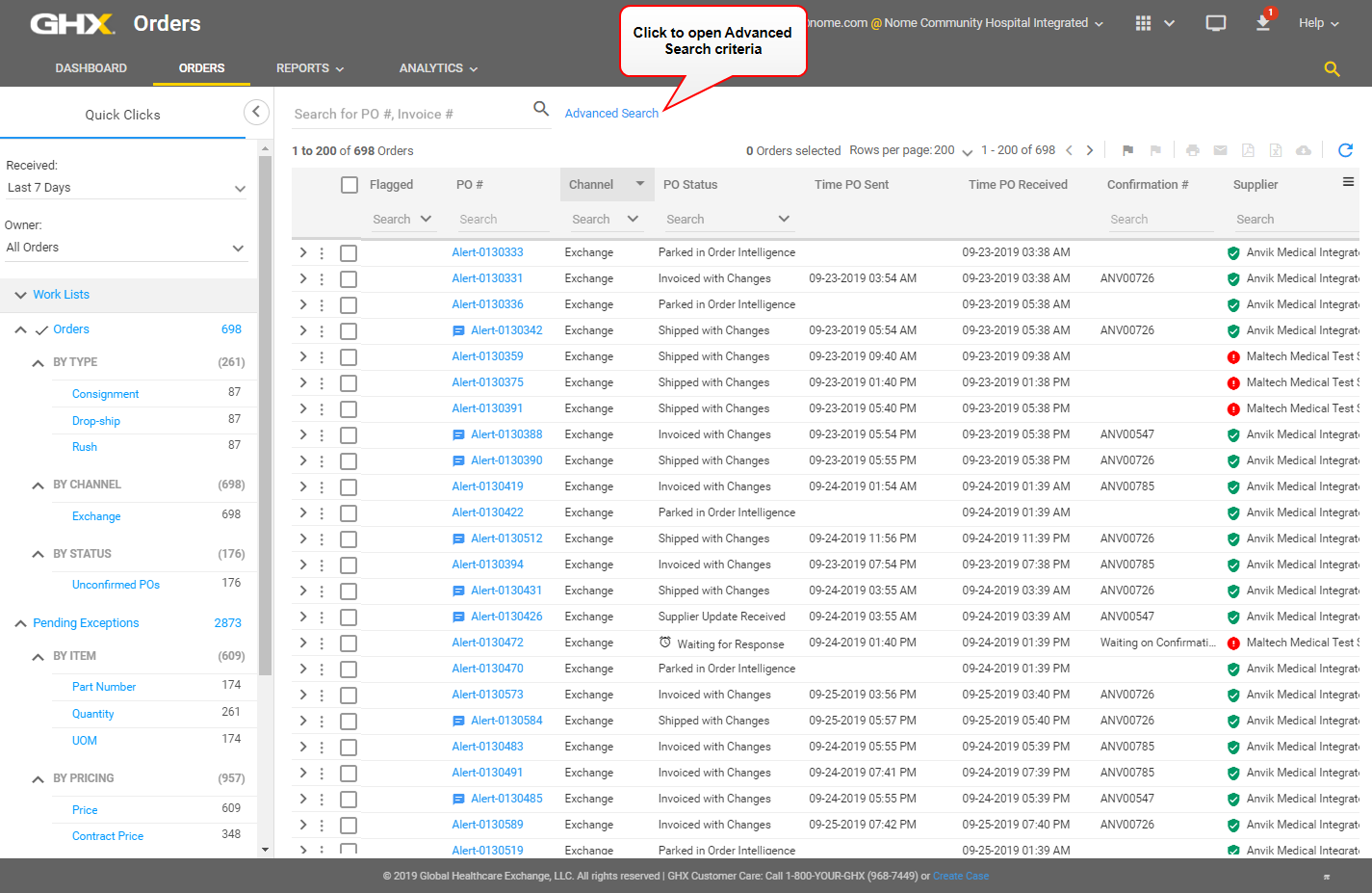
- Click Advanced Search. The Advanced Search dialog box opens.
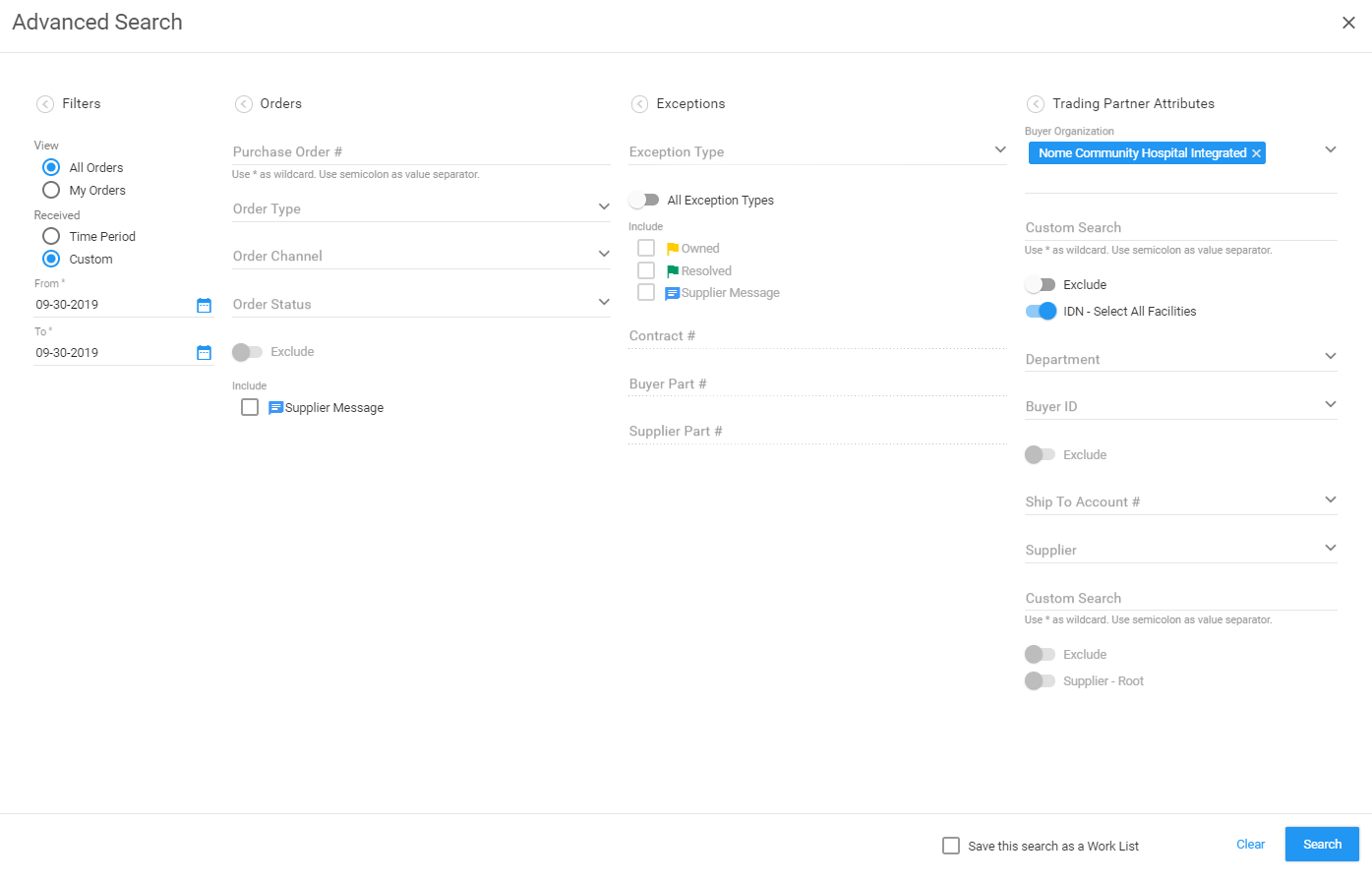
- Define search criteria in the Filters list.
 Field descriptions:
Field Description Received Select a length of time. Options are:
- View – Select from the following order types: All Orders or My Orders
- Time Period – Select from the following list of predefined time periods: Today, Yesterday, Last 3 Days Last 7 Days, Last 2 Weeks, Last 30 Days, Last 3 Months
- Custom – Select from and to dates from a calendar
Tip: This setting persists across sessions. Therefore, this option will still be selected the next time you log in.
- Define search criteria in the Orders list.
Field descriptions:
Field Description Purchase Order # Type one or more PO numbers.
Separate multiple values using a semicolon ;.
My Exchange uses wildcard search. This means that you can use the asterisk * wildcard character in certain fields to narrow your search results.
Order Type Select the type of order. Options are:
- Blanket Order – An order that a buyer places with a supplier that allows multiple delivery dates over a period of time that is often negotiated to take advantage of predetermined pricing; normally used when there is a recurring need for expendable goods
- Consignment Order – An order that is often associated with the Implantable Device Supply Chain (IDSC), where manufacturers of implantable devices supply inventory without the hospital having to purchase it; can be associated with products and inventory that are not for implant but are still supplied to the hospital with actual product purchase occurring post use
Note: When you choose Consignment Order, a Consignment Type field opens from which you can select one of the following options: Bill and Replenish, Bill Only, Replenish Only, or Waste Only. To see these consignment types, the file needs to contain specific codes that identify the consignment process.
- Drop Ship – An order that a distributor sends to a supplier requesting that the supplier send the ordered goods directly to the buyer; the supplier bills the distributor for the goods and the distributor bills the buyer
- Rush – An order that allows buyers to make changes in shipping for a particular supplier
All items on a rush order are shipped as rush. To qualify as rush the message in the header segment must have one of the following shipping instructions:
STANDARD NEXT DAY
NEXT DAY 8:00 AM
NEXT DAY 10:30 AM
SECOND DAY
THIRD DAY
SATURDAY
- Stand Alone Order – An order that represents a buyer's offer that requires the supplier's acceptance to create a binding agreement; includes the order's terms and conditions, an itemized list of requested items, and delivery details
- Standing Order – An order a buyer sends to a supplier requesting that the supplier send the ordered goods on a recurring schedule
Order Channel Select the channel. Options are:
- MetaTrade
- Exchange
- Single Channel
- TradingNet
Note: Only the available channels display. Additional order channels are presented for European customers depending on the locations they support. North American TradingNet customers will also see the TradingNet option.
Order Status Select a status. Options are:
- Arrived at GHX – The PO was received on the Exchange but it has not yet been delivered to the supplier
- ASN with no matching POs – The supplier Advance Ship Notice (ASN) was received for an unknown PO number; this is also known as a "ghost" scenario
- Invoice with no Matching PO – The supplier invoice was received for an unknown PO number; this is also known as a "ghost" scenario
- Invoiced – The PO has been fully invoiced and there are no open exceptions
- Invoiced with Changes – The PO has been either (1) partially invoiced or (2) fully invoiced and has open exceptions
- Parked – The PO was successfully processed inbound on the Exchange but was suspended because of established supplier business rules; this PO may need manual intervention
- Parked in Intelligent Business Rules – The PO was successfully processed inbound on the Exchange but was suspended because of business rules in the Intelligent Business Rules application; this PO may need manual intervention;
Note: This is a legacy status that will be removed over time as GHX migrates all legacy suppliers that are subscribed to Intelligent Business Rules over to Intelligent Business Rules.
- PO Failed – The PO has encountered an error when processing outbound through the business rules
- PO on Hold – The supplier acknowledgement contained a full hold on the PO and lines
- PO Rejected – The supplier acknowledgement contained a full rejection of the PO and lines
- POA with no matching PO – The supplier POA was received for an unknown PO number; this is also known as a "ghost" scenario
- Released to Supplier – The PO was parked, it was worked by a supplier user, was either released or force released, and was sent back through the Exchange processing for outbound delivery to the supplier's ERP
- Shipped – The PO has fully shipped and there are no open exceptions
- Shipped with Changes – The PO has been either (1) partially shipped or (2) fully shipped and has open exceptions
- Split by Business Rule – The original (or parent) PO was stopped for a splitting action (for example, to re-route the PO from one supplier division to another)
- Stopped by Supplier – The PO was stopped in the Manage PO workflow in Intelligent Business Rules
- Supplier Update Received – The supplier sent a purchase order acknowledgement (POA) and updated the PO record with the status
- Waiting for Response – The Exchange sent the PO to the supplier
Exclude Click to exclude the values in the Order Type, Order Channel, and Order Status fields. The icon turns blue  when enabled.
Supplier Message Click to include only orders with supplier messages. - Define search criteria in the Exceptions list.
Field descriptions:
Field Description Exception Type Select an exception type from the list. Options are:
Accepted - Schedule Date Pending
Accepted - Substitution Made
Backordered
Contract Price
Deleted
Not On PO
Not On POA
On Hold
Part Number
Price
Quantity
Rejected
UOM
All Exception Types Click to include all exception types. The icon turns blue when enabled.Include Select a checkbox or both checkboxes to include flagged order lines and order lines with supplier messages in the search. Options are:
- Owned – Include order lines that have a yellow flag
- Resolved – Include order lines that have a green flag
- Supplier Message – Include order lines that have supplier messages
Note: The supplier message in the PO View Summary field is the POA header message. The supplier messages in the Pending Exception quick links are POA line-level messages. Best practice is for suppliers to communicate item-level messages at the line level.
Tip: To view supplier messages, click the POA to open the Transaction Details dialog box, scroll down to the Purchase Order Acknowledgement Details section, and look at the Comments column.
Note: Supplier POA message details are derived from GHXellence standards and best practices. For EDI 855's (POAs), both the heading-level and line-level messages are based on the N9 loop's MSG01 field.
Contract # Type one or more contract numbers.
Separate multiple values using a semicolon ;.
My Exchange uses wildcard search. This means that you can use the asterisk * wildcard character in certain fields to narrow your search results.
Buyer Part # Type one or more numbers.
Separate multiple values using a semicolon ;.
My Exchange uses wildcard search. This means that you can use the asterisk * wildcard character in certain fields to narrow your search results.
Supplier Part # Type one or more numbers.
Separate multiple values using a semicolon ;.
My Exchange uses wildcard search. This means that you can use the asterisk * wildcard character in certain fields to narrow your search results.
- Define search criteria in the Trading Partner Attributes list.
Field descriptions:
Field Description Buyer Organization Type at least two characters to select from a list of organizations. Custom Search Type a buyer organization name.
Separate multiple values using a semicolon ;.
My Exchange uses wildcard search. This means that you can use the asterisk * wildcard character in certain fields to narrow your search results.
Exclude Click to exclude the organizations in the Buyer Organization and Custom Search fields. The icon turns blue when enabled.IDN - Select All Facilities Click to include all buyer facilities.
Tip: This setting persists across sessions. Therefore, this option will still be selected the next time you log in.
Department Type at least two characters to select from a list of departments. Buyer ID Type at least two characters to select from a list of buyer IDs. Buyer Part # Type a buyer part number.
Separate multiple values using a semicolon ;.
My Exchange uses wildcard search. This means that you can use the asterisk * wildcard character in certain fields to narrow your search results.
Exclude Click to exclude the values in the Department and Buyer ID fields. The icon turns blue when enabled.Ship To Account # Type at least two characters to select from a list of account numbers.
Supplier Type at least two characters to select from a list of suppliers.
Custom Search Type one or more supplier organization names.
Separate multiple values using a semicolon ;.
My Exchange uses wildcard search. This means that you can use the asterisk * wildcard character in certain fields to narrow your search results.
Exclude Click to exclude the values in the Supplier and Custom Search fields. The icon turns blue when enabled.Supplier - Root Click to include all supplier divisions.
Tip: This setting persists across sessions. Therefore, this option will still be selected the next time you log in.
- Scroll down and select the Save this search as a Work List checkbox (optional). See Work Lists for more information.
-
Click Search or press ENTER. The search results display.
Tip: A "No PO Available" search result in the Time PO Received, Time PO Sent, PO Amount, and PO Type columns displays at the end of the list, regardless of the sort order. When exported to .csv or .xlsx, the data displays in the selected sort order.
 Click the icon to watch a video about this topic.