Delete Notifications
Users can delete only those notifications they originally added.
Caution: When you delete a notification, it will no longer be available to any user. If you want to reinstate thus notification in the future, you will need to add it again. If you think you may need it again in the future, you may want to disable the notification instead. See Disable Notifications for more information.
- Click Dashboard.
- Click Organization View.
- Search for the notification that you want to delete.
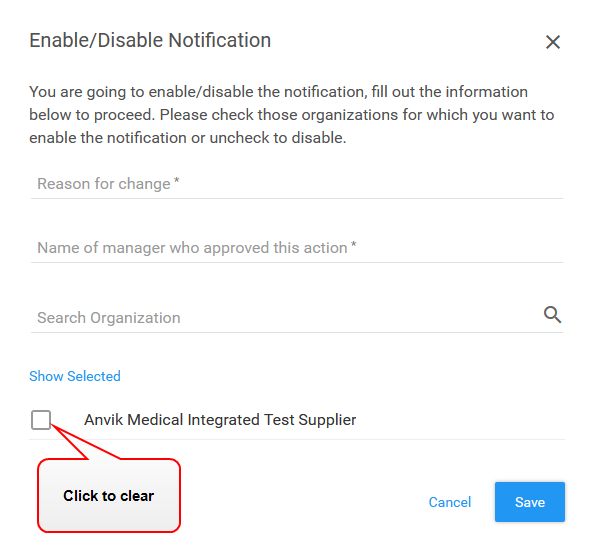
- Click the Enabled status toggle. The Enable/Disable Notification dialog box opens.
Note: Before you can delete a notification, you must change the notification's status to Disabled.

- Type information in the required fields.
- Clear the organization checkbox.
- Click Save. The application changes the status to Disabled.
- Click the
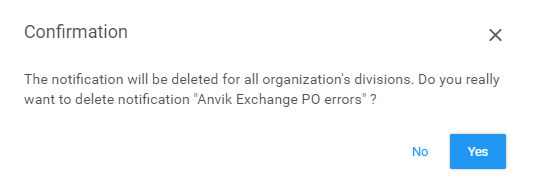
 icon in the Actions column of the Organization Notifications table for the disabled notification. A warning message opens.
- Click Yes.
 Click the icon to watch a video about this topic.