Export Data
- Select report criteria and run the report. See Run Reports for details.
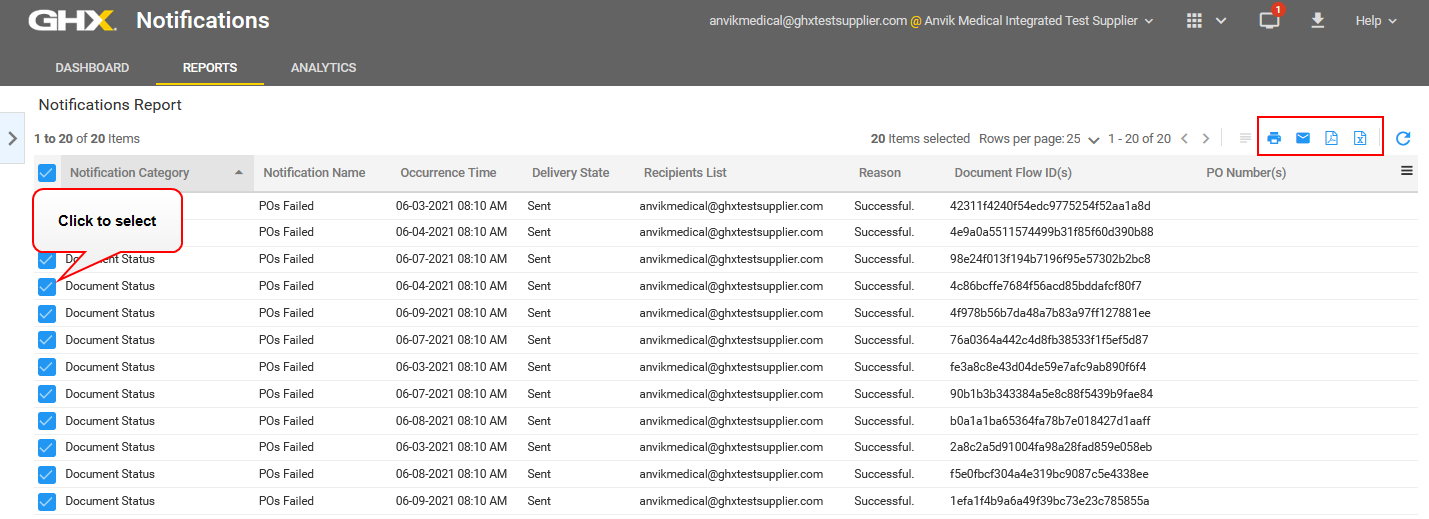
- Click the checkbox to the left of the records you want to export.
- Click one of the following action icons above the table on the right:
 Print – Opens a dialog box on which you can identify your default printer
 Send Email – Opens a Send Email dialog box
 Export to PDF – Opens an Export to PDF dialog box
 Export – Opens an Export (to .csv or .xlsx) dialog box
- Select one of the following options on the Send Email, Export to PDF, or Export dialog boxes.
 Options are:
- Only checked columns in the table – Includes only those columns that are displayed in the application (those that you selected from the Column selection list on the right side of the table heading)
- All columns in the table (including hidden) – Includes all columns, including those that are hidden from view in the application
- Select one of the following options in the Please select rows you would like to export area on the Export dialog box when you have selected many rows of data to export.Options are:
- Current page – Exports the records from the page that is currently open
- All report results (Large data exports may encounter delays) – Exports all records included in the report results
- Click Print, Send, or Export (depending on the button name on the dialog box).