Export Report Data
- Click Reports and select Freight and Special Charges. The Summary Freight and Special Charges Report page opens.Tip: There are two tabs in left pane: Summary and Detail.
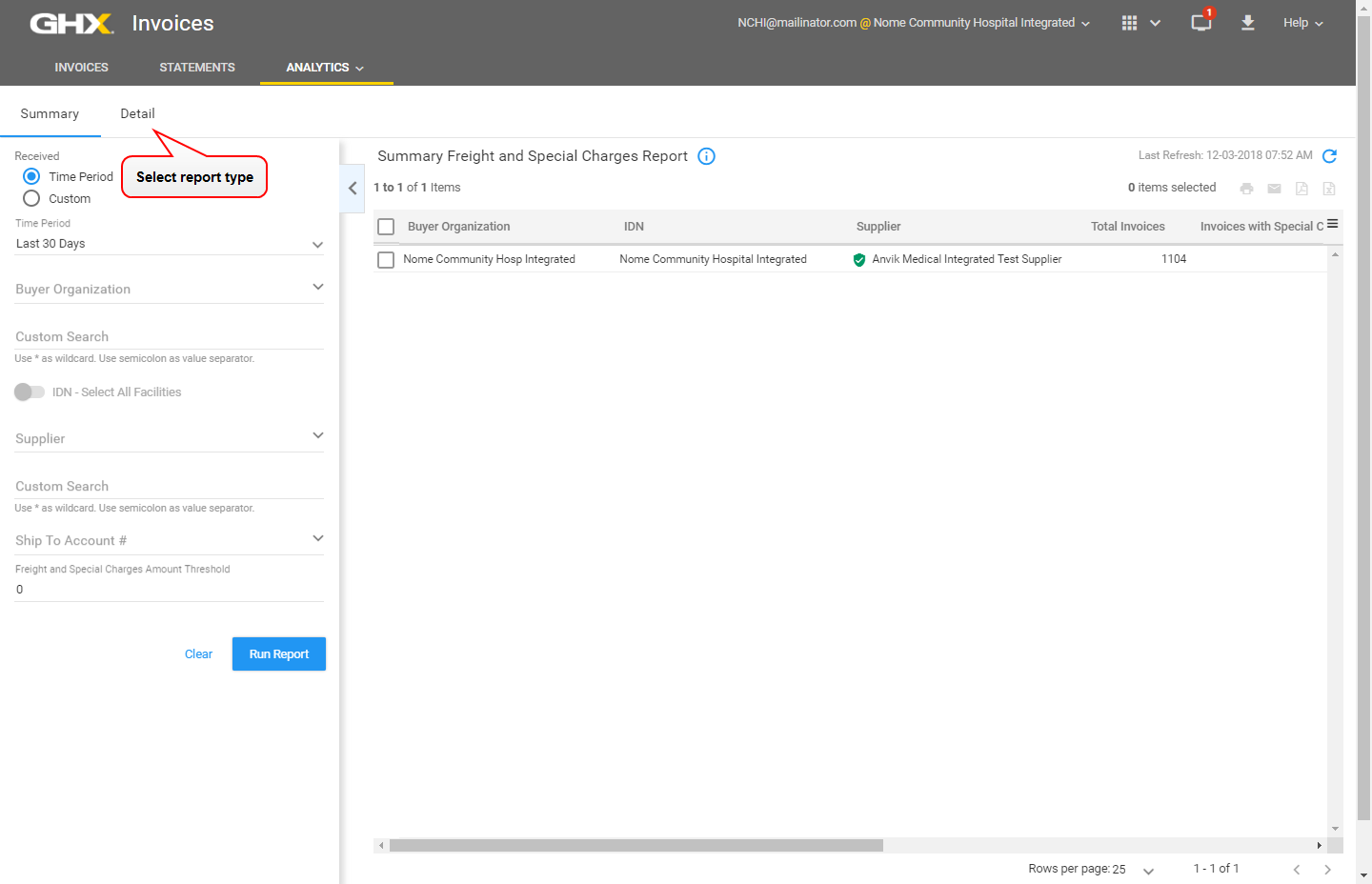
- Search for invoices using the following filters.
Options are:
- Time Period: Choose from the following options: Today, Yesterday, Last 3 Days, Last 7 Days, Last 2 Weeks, Last 30 Days, and Last 3 Months
- Custom: Select from and to dates from a calendar
- Buyer Organization: Type at least two characters of a buyer organization name
- Custom Search: Type a buyer organization name, separating multiple values using a semicolon
- IDN: Select All Facilities: Click to search for invoices associated with your organization's IDN or parent organization.
- Supplier: Type at least two characters of a supplier organization name
- Custom Search : Type a supplier organization name, separating multiple values using a semicolon
- Ship To Account #: Type at least two characters to select from a list of account numbers
- Click Run Report.
- Select the checkboxes to the left of one or more invoices in the search results on the right.
- Click Export. A dialog box opens.
Note: See Export Data to a .pdf File or Export Data to a .csv File for details about the export options.
- Click OK. The application exports the information to a PDF file or to an Excel spreadsheet, based on your selection.