Bulk Upload/Edit Items
While you can always add or edit individual contract items using the Add Single Item to a Contract and Edit Item/SUOM Item functionalities, you may want to upload or edit items in bulk for an existing contract.
To bulk upload or edit items on a contract:
-
Search for and select the contract with the items you want to add or edit. Refer to Search for a Contract for more information.
-
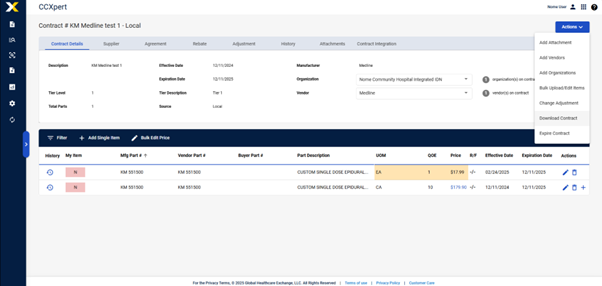
Select Actions > Bulk Upload/Edit Items.
-
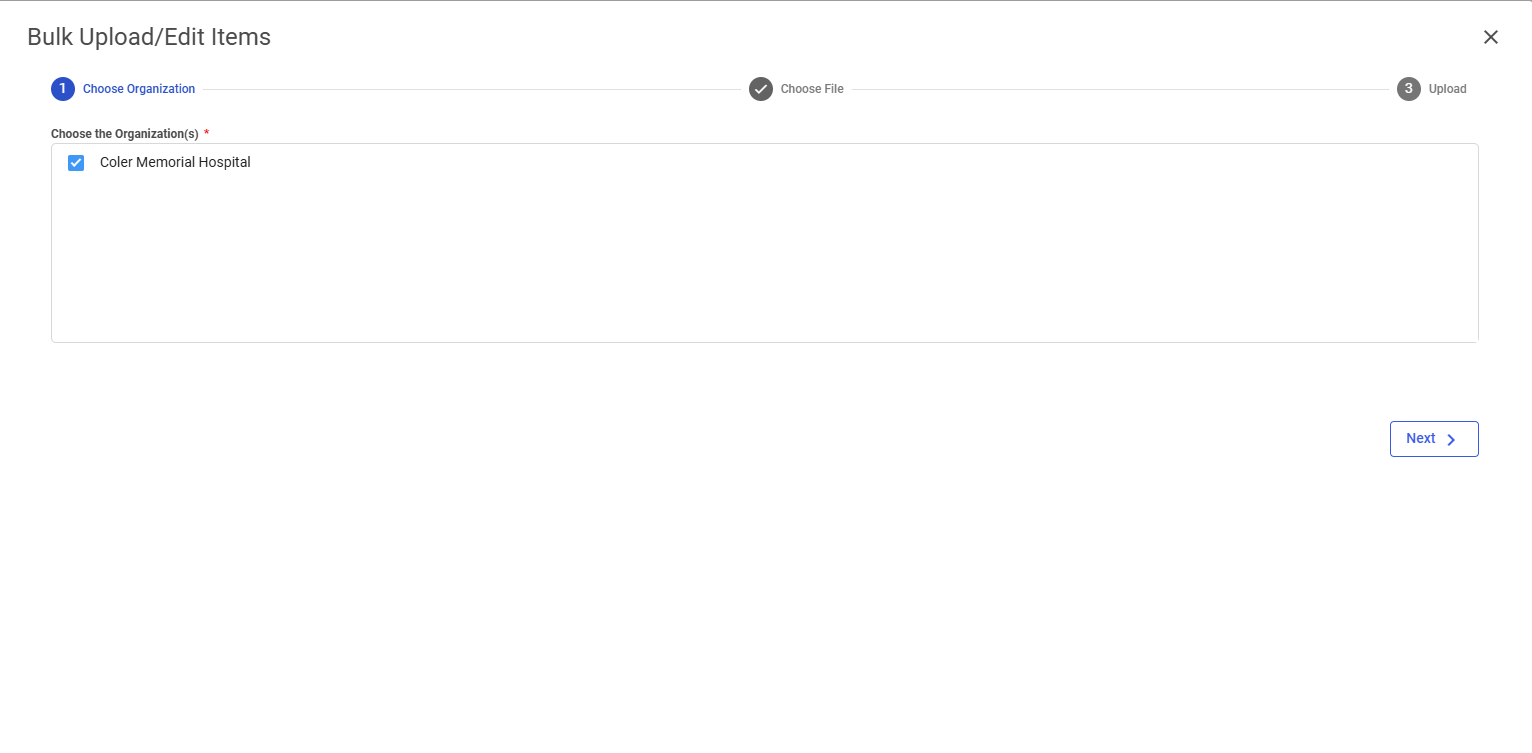
The Bulk Upload/Edit Items window appears. Select the desired organizations in the Choose the Organization(s) field.
-
Select Next.
-
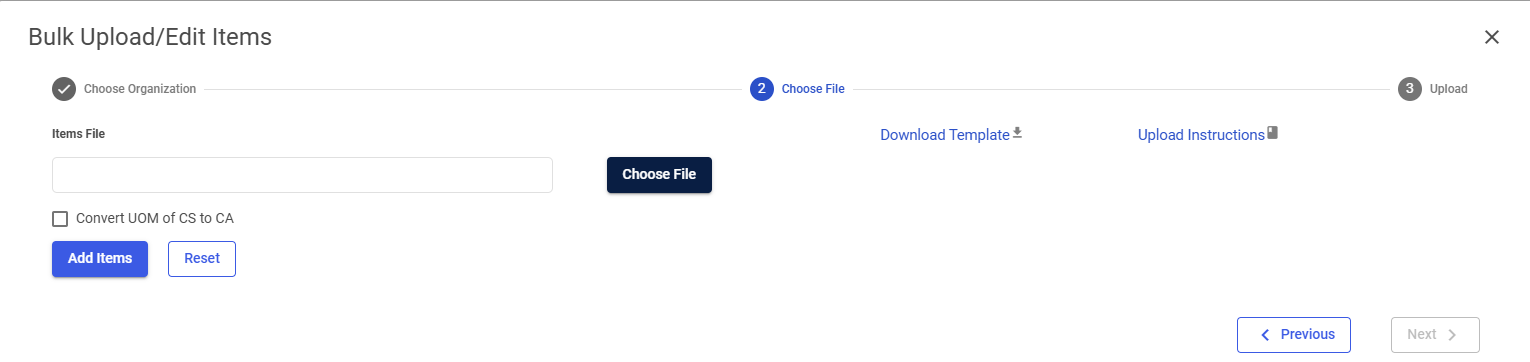
Select Download Template to download the contract item template. The file is downloaded to your computer in XLSX format.
-
Make the desired updates to the contract item template. You can add new items or edit existing items.
Note: Any existing items will be updated. There is no need to expire the item on one line and load the new price on another line. You only need to expire items that should no longer be on contract. -
Return to the Bulk Upload/Edit Items window when you are done updating the contract item template.
-
Select Choose File to search for and select the contract item template you updated.
-
Select the box to Convert UOM of CS to CA if necessary.
-
Select Add Items.
-
A confirmation message appears. Select Yes. The items are uploaded to CCXpert.
-
Review the Clean Items to ensure the information is accurate.
-
Review the Problem Items to discover which items could not be uploaded. The Message column describes the issue with the item.
Note: You must correct the Problem Items. Problem Items will not be uploaded. -
Fix the problem items in the template and re-upload the template.
-
Select Next. The items are added to the contract.