Bulk Contract Integration
The Bulk Contract Integration screen lets you release contract pricing data in bulk from CCXpert into a provider’s material management system. From this screen, you can release all contracts on the same schedule or filter contracts in different combinations to allow for various schedules and options.
Navigation
This screen appears when you select Configuration > Bulk Contract Integration from the left-side navigation pane.
Available Actions
On the Bulk Contract Integration screen, you can:
Field Descriptions
The following fields appear on the Bulk Contract Integration screen.
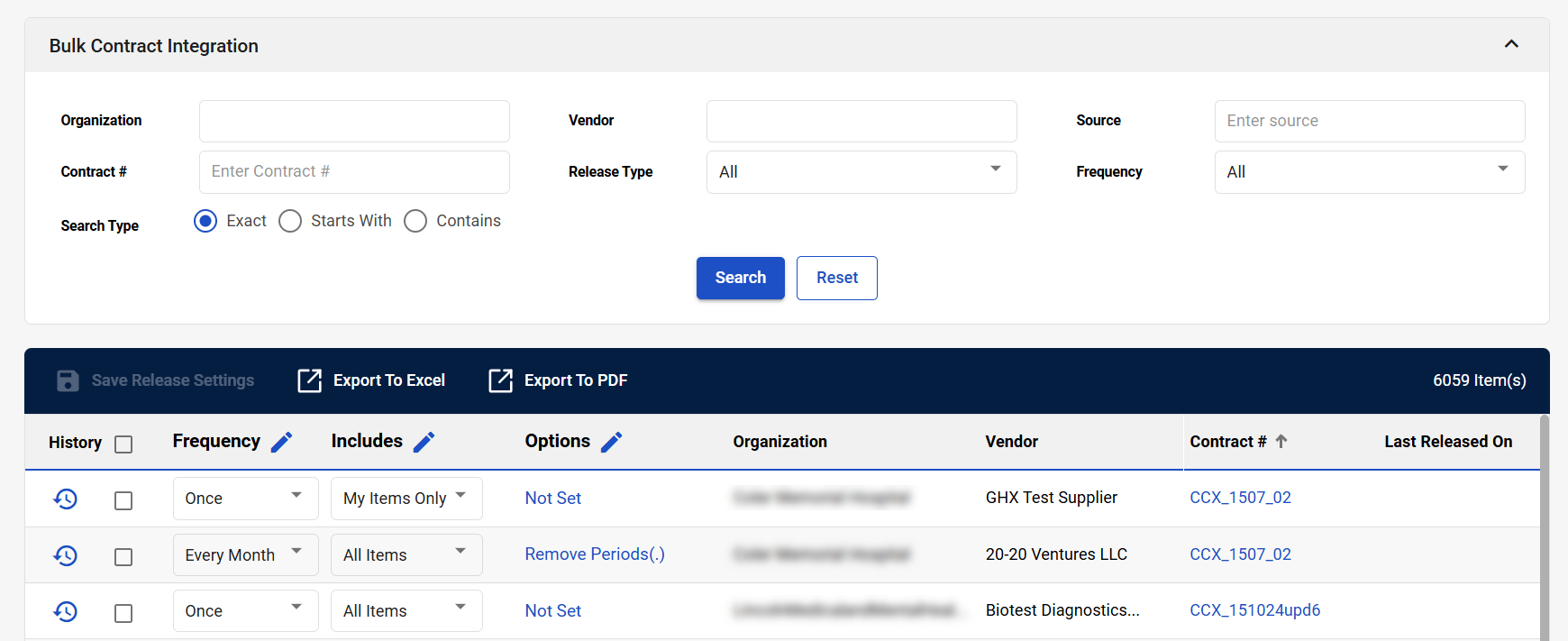
|
Field |
Field Description |
|---|---|
|
Bulk Contract Integration |
|
|
Organization |
Select an organization to filter contracts by organization. |
|
Vendor |
Select a vendor to filter contracts by a vendor. |
|
Source |
Select a contract source type. |
|
Contract # |
Enter a contract number. |
|
Release Type |
Select a release type. Release types indicate whether a contract has been scheduled for release. The available options are:
|
|
Frequency |
Select a release frequency. Release frequencies indicate how often a contract has been scheduled for release. The available options are:
|
|
Search Type |
This field works with the Contract # search field to filter contracts using the contract number you entered in the Contract # search field. The available options are:
|
|
search |
Select to search for contracts after entering search criteria. |
|
reset |
Select to reset your search criteria. |
|
Bulk Contract Integration Table |
|
|
Save Release Settings |
Select to save your changes after editing contract release schedules. |
|
Export to Excel |
Select to export the selected contracts in XLSX format. |
|
Export to PDF |
Select to export the selected contracts in PDF format. |
|
# Item(s) |
Displays the number of contracts listed in the table. |
|
History |
Select to view a history of releases for the selected contract. |
|
Select checkbox |
Select a contract to export or edit. |
|
Frequency |
Indicates how often the contracts are released.
To edit the release schedule for a single contract, select the new Frequency from the dropdown. When you have finished modifying the release schedule, select Save Release Settings.
To edit the release schedule for all displayed contracts, select Edit Frequency. The Frequency window opens. The available frequency options are:
Select Apply To All Rows to save your changes. |
|
Includes |
Select the items you want to include in the price data. This allows you to define which items are sent in the price data when you release the catalog.
To edit the item inclusions for a single contract, select the new Includes from the dropdown. When you have finished modifying the item inclusions, select Save Release Settings.
To edit the item inclusion for all displayed contracts, select Edit Includes. The Includes window opens. The available options are:
Select Apply To All Rows to save your changes. |
|
Options |
Select the options you want applied to the price data.
To edit the options for a single contract, select the Options link. The Options window opens. Select the new options. When you have finished modifying the options, select Apply To Current Row.
To edit the options for all displayed contracts, select Edit Options. The Options window opens. The available options are:
Select Apply to All Row to save your changes. |
|
Organization |
Displays the organization associated with the contract. |
|
Vendor |
Displays the vendor associated with the contract. |
|
Contract # |
Displays the contract number. Select the contract number to view the contract. The Contract Details screen opens in a new tab. |
|
Last Released On |
Displays the date the contract was last released. |